
Complete, reopen, and filter tasks
Find the relevant tasks, mark work complete and reopen a task when more work is needed.
Before you start
Select Tasks in the main navigation. Tasks link to an account, quote or order. Check the record number and note before changing a task's status.
This example uses the packaging follow-up on quote 35.
Find the relevant tasks
Use the category dropdown below the Tasks heading to select All Categories, Accounts, Quotes or Orders. Then choose Open or Completed.
The counts reflect the selected category. For example, choosing Quotes shows one open task in this example, while Accounts shows No open tasks.
Select Due Date (Earliest) to switch to Due Date (Latest). Select it again to put the earliest dates first. For example, Earliest places an August 25 order task before a September 17 quote task; Latest reverses that order.
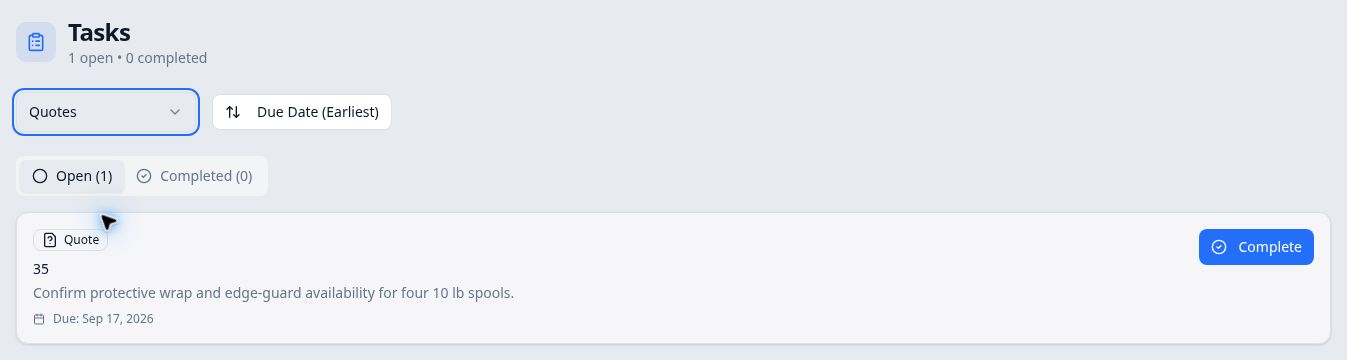
Complete a task
- Find the task under Open
Choose the relevant category and select Open. Confirm the task's note and linked record.
- Select Complete
Select Complete on that task's card. It leaves the Open results. Select Completed to find it there; its action is now Reopen.
In the quote-only example, the counts changed from Open (1) / Completed (0) to Open (0) / Completed (1). The same completed task remained after reloading and reselecting the category and tab.
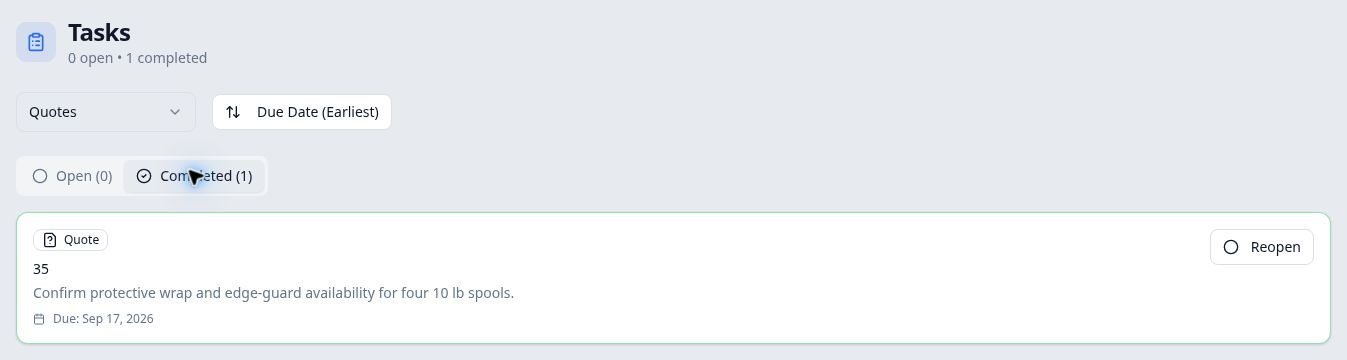
Completed tasks remain available in the Completed tab.
Reopen a task
In Completed, select Reopen on the task. Then select Open to find it again. Its note and linked record remain, and the action changes back to Complete.
If you reopen the page to confirm persistence, reselect the category and status tab as needed. In this example, reloading returned the list to All Categories and Open.
Open the related record
Click the task card's note or record number to open its account, quote or order. Use the Complete or Reopen button when you want to change the task status instead. The example task card opened quote 35, where Tasks showed Open (1) after reopening.