
Open and download a saved traveler
Open an existing PDF from the order’s Travelers card, identify its saved entry, and download a copy for review.
Before you start
You need an order with a saved traveler and access to its Travelers card. Confirm the order number before opening the document. A saved traveler is a generated PDF; its contents still need to be checked before use.
Open the saved file
- Find the traveler entry
Open the order in Orders. Find Travelers, below the Part card on the right side of the desktop order page. Each entry shows its creation date and time and a template version label.
In this example, order 100365 has one saved entry marked v7. That label identifies the template version used for the saved file. Use the entry’s date, time and version when discussing a particular document with the person responsible for the order.
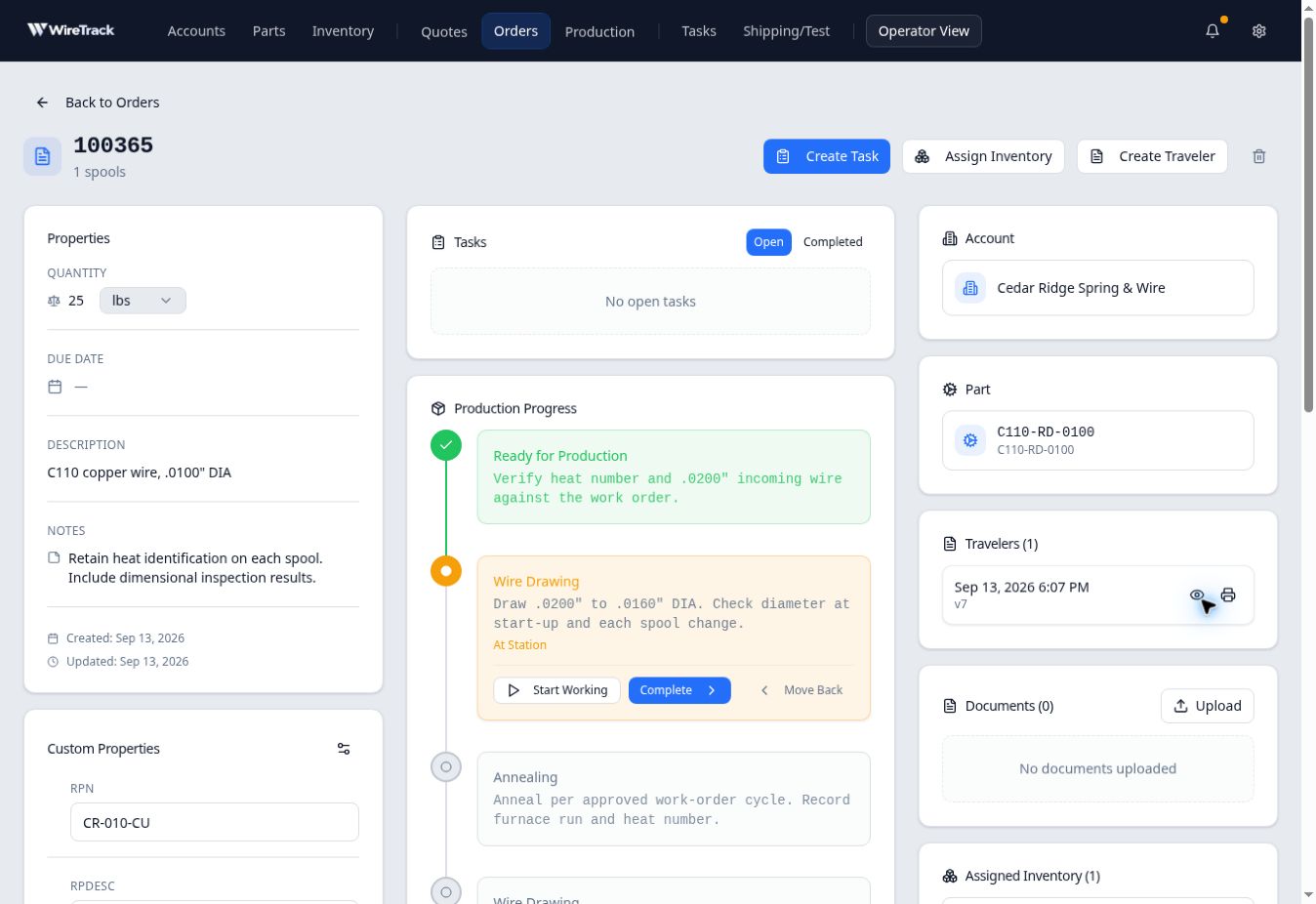
The saved entry has its own date, time, template version and View control. - Open the PDF
Select the eye-shaped View control at the right of the entry, beside the printer icon. Wait for the saved PDF to open in another browser tab.
Compare the customer, order reference, part, quantity and instructions with the intended order. In the example, the PDF contained Cedar Ridge Spring & Wire, order reference 100365, part C110-RD-0100, 25 lbs, and four production steps.
- Download a copy
Use the PDF viewer’s Download control. In the Chrome viewer used for this example, it is the downward-arrow icon near the top right, beside the printer icon. The exact viewer controls can vary by browser.
Wait for the download to finish, then open the downloaded PDF and check the same order details and instructions. The filename may be an automatically generated identifier, so identify the job from the document’s contents as well.
- Return to the saved entry
Close the PDF tab to return to the order. Reopening the order should still show the saved traveler. Order 100365 retained its single entry after opening, downloading and reloading.
If there is no saved entry
No travelers generated means this card has no saved traveler to open. Check that you have the intended order. If a new document is required, ask the person responsible for the order to arrange it and confirm its contents before use.
Ordinary uploads are listed separately under Documents. Look in Travelers for generated traveler PDFs.