
Read the production schedule
Find station rows, interpret date columns and overdue work, and open an order’s per-step production schedule.
Open the schedule
Select Production in the top navigation, then Scheduling in its menu. The page is headed Production Scheduling.
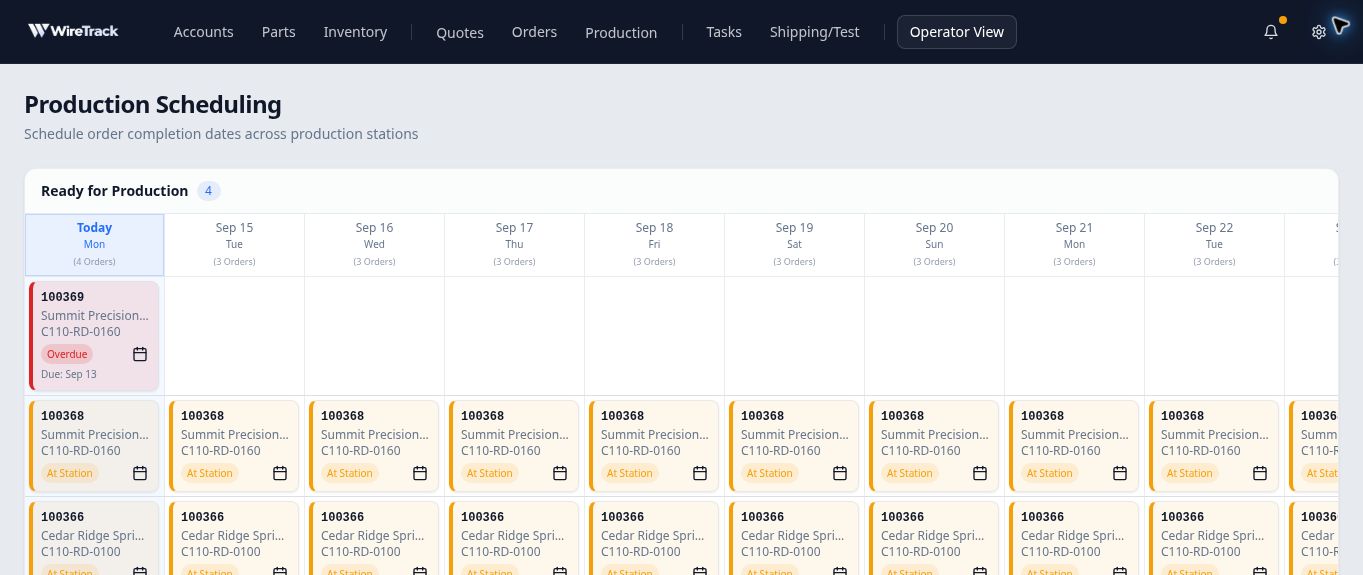
Each station has its own section, with the station name above a grid of dates. Today is highlighted. Read across a station’s row to follow its order cards over the displayed days.
Interpret the cards
A card identifies its order, account and part, with a status label. A date marked Due on a scheduling card is that step’s scheduled completion date; check the full order separately for the order Due Date.
The same order can appear in several date columns. Those repeated cards are not separate orders or additional quantities. In this example, order 100368 appears across successive days while order 100369 is overdue in Today’s column.
Open an order’s schedule
Select the order number on a card. The panel on the right shows Production Schedule, with one entry per routing step. Confirm the order number and customer at the top.
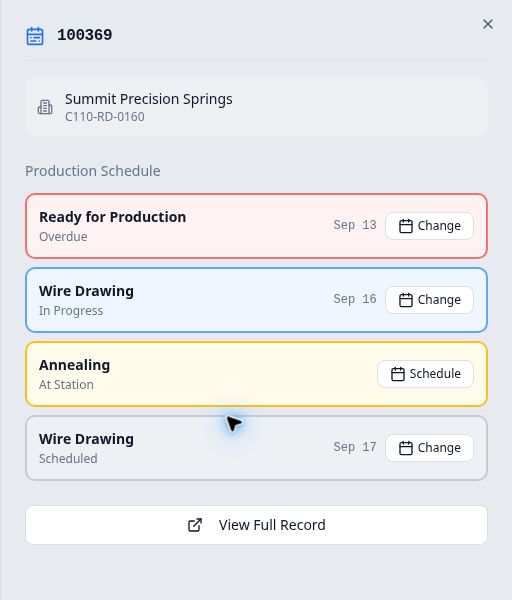
| Label in this example | Meaning in the observed state |
|---|---|
| At Station | Work is present at the step and has not been marked started there. |
| In Progress | Work has been marked started at that step. |
| Overdue | An active step’s scheduled completion date is earlier than today. |
| Scheduled | A future routing step has a date, without work yet at that position. |
In this September 14 example, Ready for Production was marked Overdue with a September 13 step date. The first drawing step was In Progress, Annealing was At Station, and the later drawing step was Scheduled for September 17.
Select View Full Record at the bottom of the panel to inspect the order’s actual work instructions and progress. Use Close at the panel’s top right to return to the grid.
Before changing dates
Find the correct routing occurrence, especially if a stage name repeats. Follow Set or change an order-step completion date in Related reading for the date controls. Scheduling and production movement are separate actions.