
Set or change an order-step completion date
Save a planned completion date for a routing step, change it, and keep repeated stages independently scheduled.
Before you start
You need access to Production → Scheduling, an order with production steps, and permission to edit its schedule. Identify the exact step and intended completion date before saving.
Order 100369 has Wire Drawing both before and after Annealing. The two occurrences need separate dates.
Set a date
- Open the order’s schedule panel
Select Production in the top navigation, then Scheduling. Select the order number on a card to open its panel on the right. Confirm the order number, account and part at the top.
- Choose the routing occurrence
Under Production Schedule, locate the intended step. For the first drawing pass, use the Wire Drawing entry before Annealing. Select Schedule on the right of that entry.
- Select the completion date
Check the month and year in the calendar. Select the intended day. In the observed flow, selecting the day saves the date and closes the calendar; there is no separate Save button.
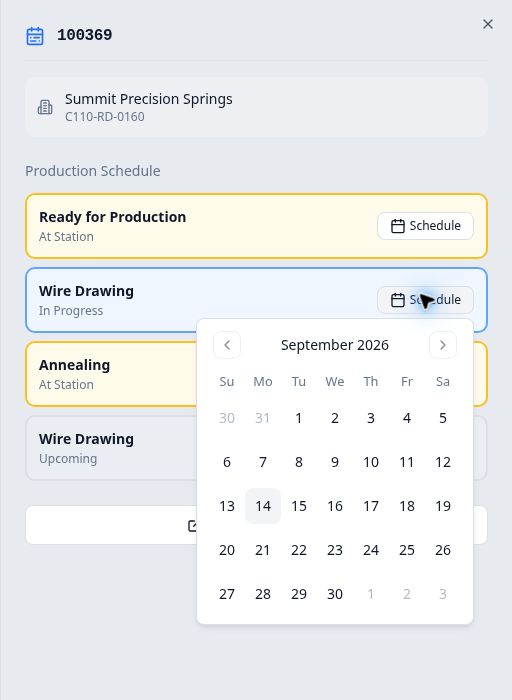
Use the date control beside the specific step you want to schedule.
Change a date and verify it
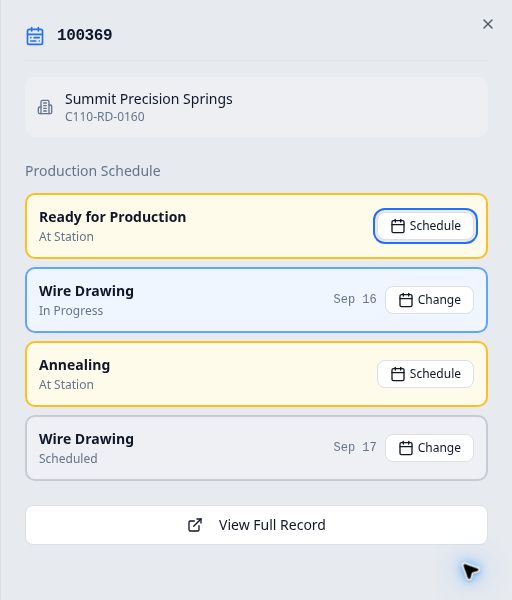
Select Change beside the existing date, then choose the replacement day. Reopen the order’s schedule panel to confirm the saved value.
In this example, the first Wire Drawing date was set to September 15, then changed to September 16. The later Wire Drawing entry after Annealing was separately set to September 17. Reloading confirmed both dates.
If you need to remove a date
The scheduling panel and calendar shown here did not expose a Clear or Remove control. Do not assume choosing an already-selected day removes the date. Ask your planner or support contact for the supported approach if the date must be removed.
Expected result
Setting a date does not start, complete or move production work. It also does not replace the order’s overall Due Date.