
Create and update an account
Create a customer account, find its saved record, and update its notes from the account detail page.
Before you start
You need access to Accounts and permission to create and edit customer records. Search for the customer first to avoid creating a second account for the same company.
This example uses Summit Precision Springs, a customer ordering copper wire on 25 lb spools.
Create the account
- Open the account form
Select Accounts in the top navigation, then New Account, at the top right beside Import Records. The Add New Account form opens.
- Enter the company details
Enter Company Name. In the form shown, it is marked with an asterisk. Add Contact Name, Email, Phone, Address, and Notes where relevant.
Use Notes for information such as spool packaging or identification requirements. In this example, the contact fields were left blank.
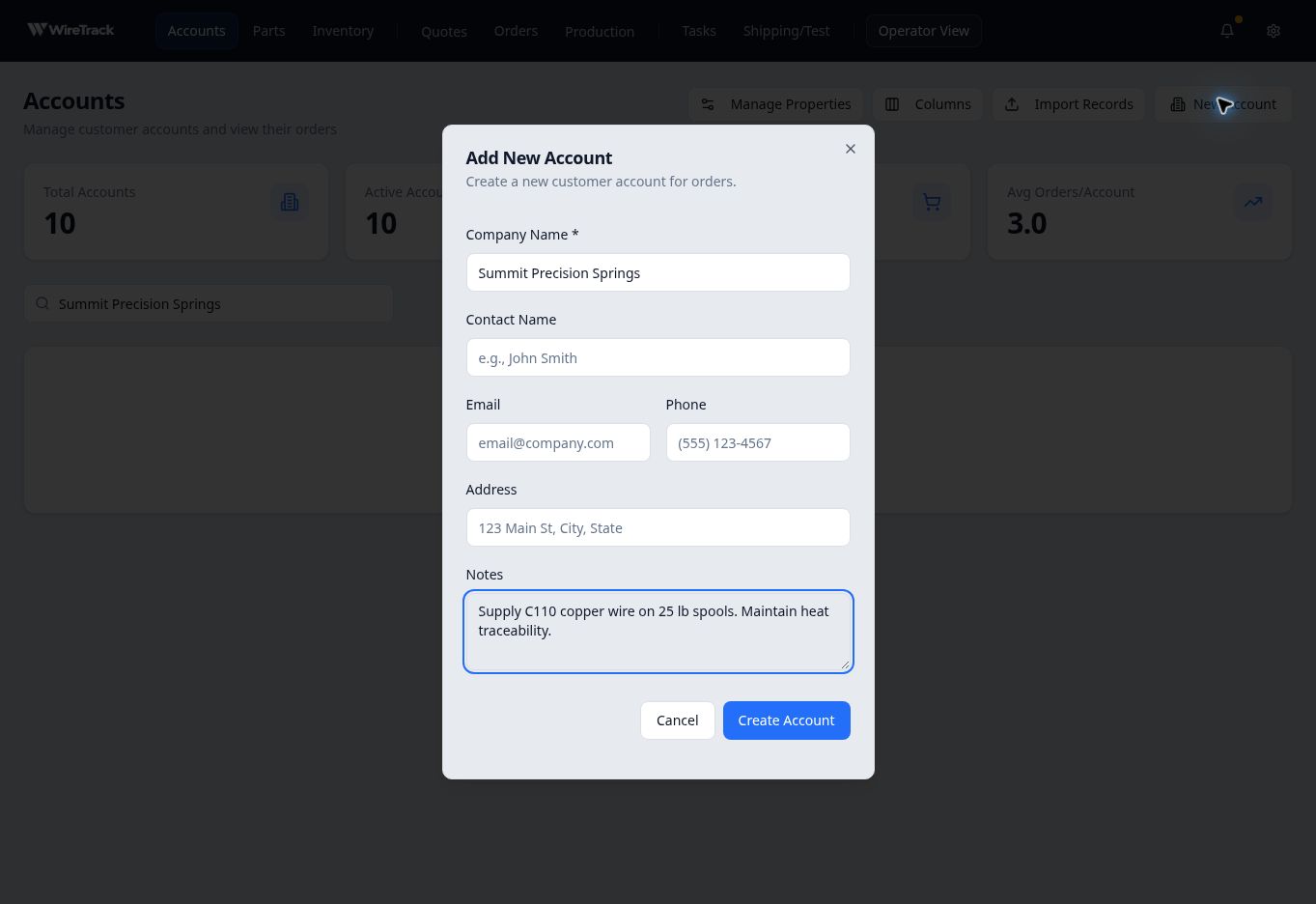
Enter the company name and the details you want to keep with the account. - Create and find the saved account
Select Create Account. Wait for the form to close and the account to appear in the list. Enter its company name in Search accounts... above the account list, then select the matching account name.
Update account notes
On the account detail page, find Notes in Properties. Click its current text to edit it. Enter the new note, then click outside the field to save. Wait for the field to return to its normal display before leaving the page.
Reopen the account and check the saved wording. Here, the note was changed to require a tag with the part number, heat number and net weight on each spool.
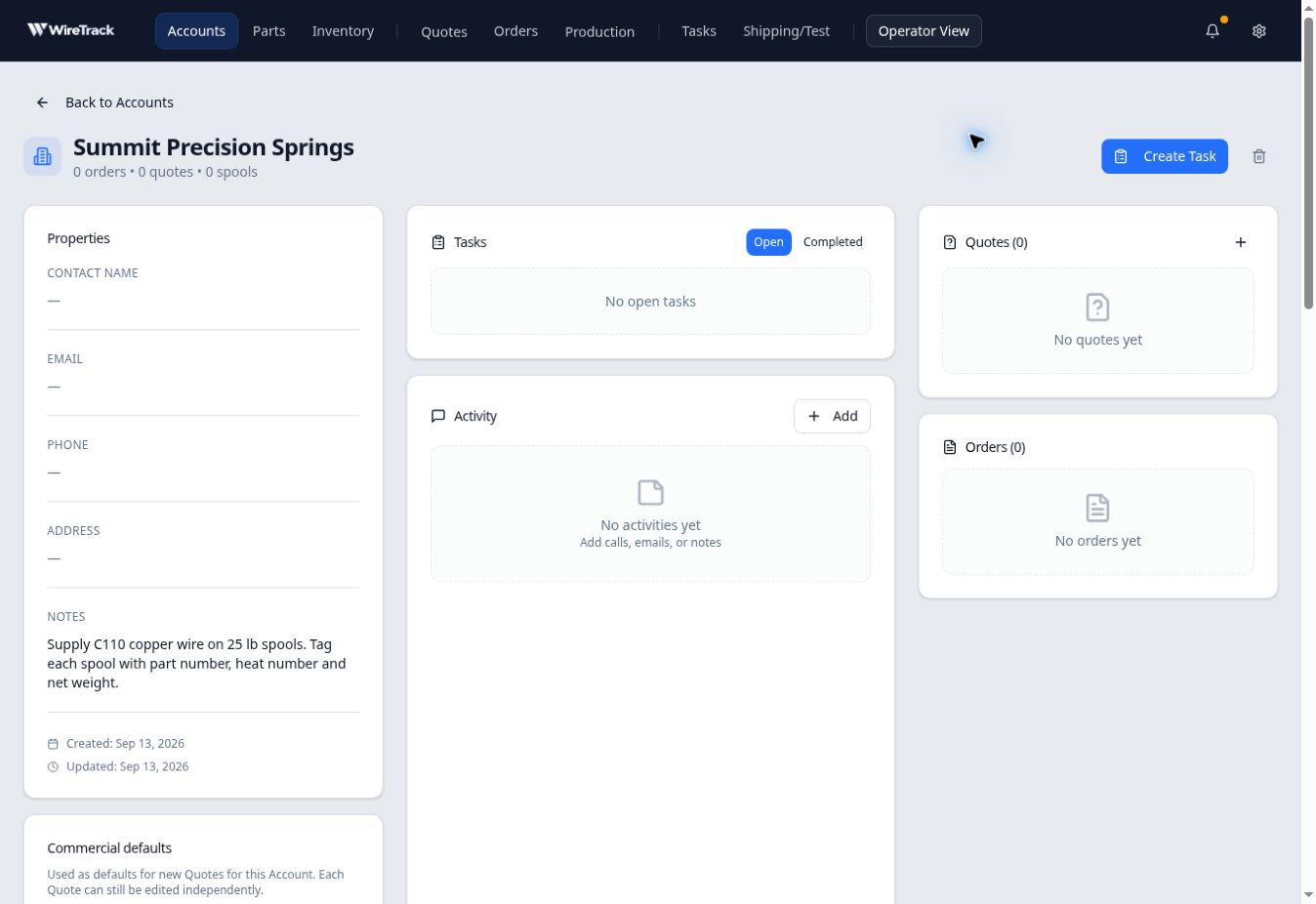
Expected result
If the page differs
Your company may have additional custom properties. This example covers the account creation form and editing Notes; commercial defaults and custom-property setup are separate tasks.