
Create an order from an account and part
Create an order using an existing customer account and part, then confirm its quantity, linked records, spool, and production steps.
Before you start
You need access to Orders and permission to create orders. Have an existing customer account and part available. Review the part’s production steps before creating the order, because the new order captures those instructions.
The example books 25 lbs of .0100-inch C110 copper wire for Cedar Ridge Spring & Wire. Use your own order details and unit.
Create the order
- Open New Order
Select Orders, then New Order. Allow the suggested Order Number to finish loading. Keep it or enter the number used in your own system.
- Choose the account and part
Choose the customer under Account, then choose the part under Part Number. Check both selections before continuing.
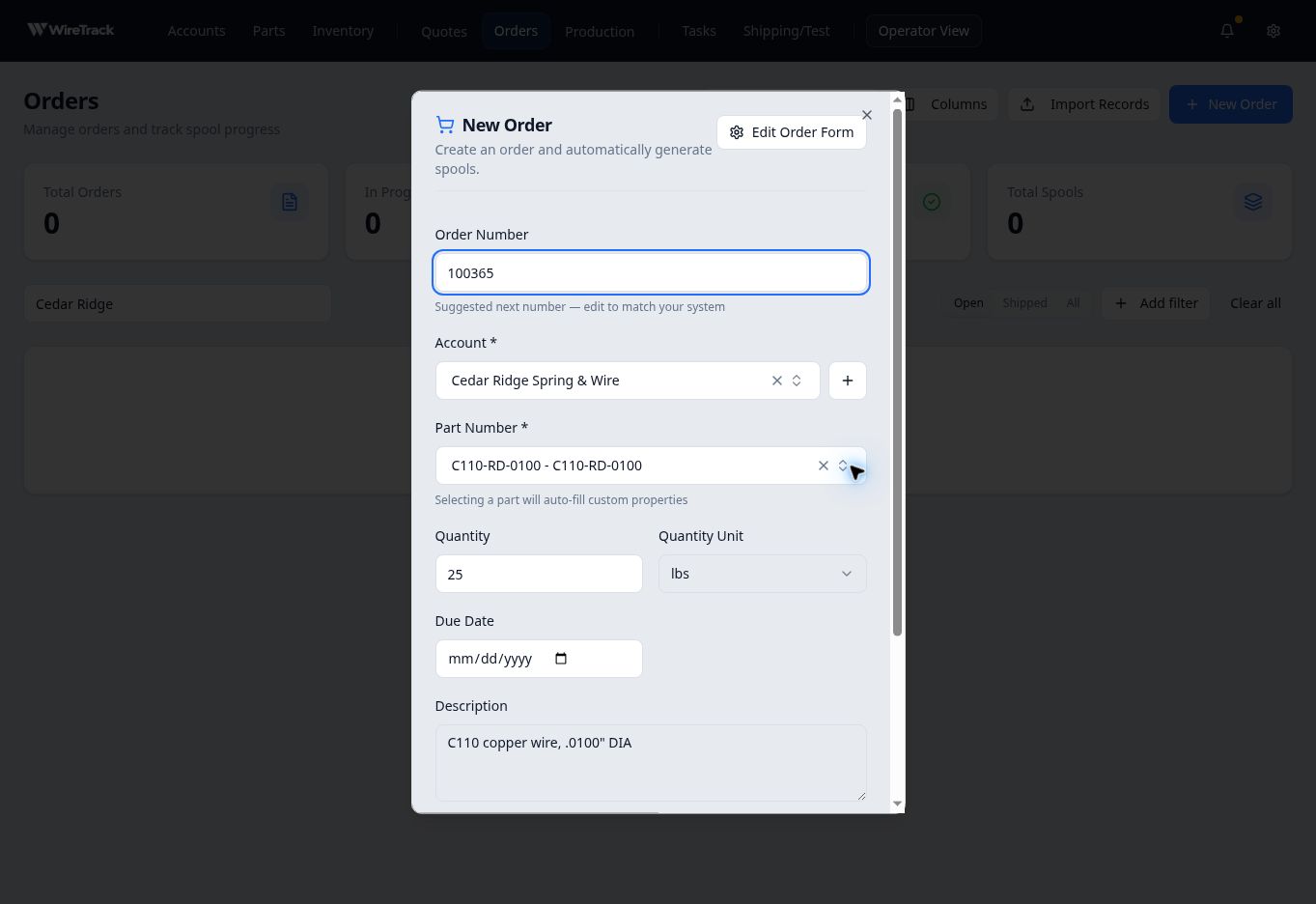
Confirm the selected account, part, quantity, unit, and order number. - Enter the order details
Enter Quantity and select Quantity Unit. Add a Due Date, Description, and Notes as needed. Scroll within the form to see its remaining fields and action buttons.
Review Order Number again after completing the other fields. Check it immediately before submission to catch an unexpected value as the form finishes loading.
- Create and verify the order
Select Create Order and wait for the order detail page. Check the heading, Quantity, Account, Part, and Production Progress. Reopen the order to confirm the saved details.
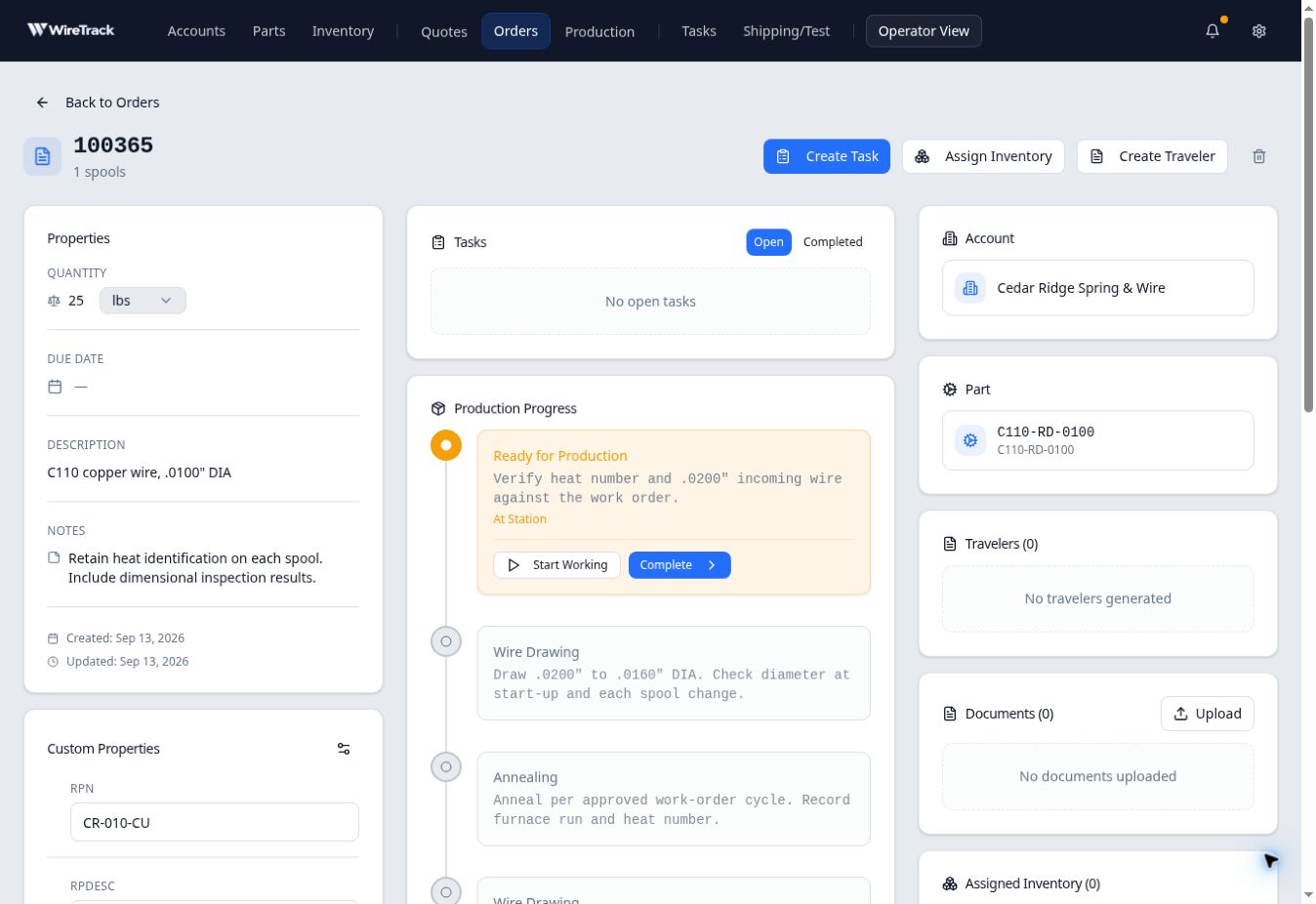
The order detail page brings together the linked records and captured production steps.
Expected result
If the form differs
The order form can be configured for your company. If fields differ from these screenshots, use your company’s required fields and review the saved order before starting work. If a saved number is unexpected, locate the order you just created before attempting another creation.