
Assign inventory to an order
Select available inventory, assign a partial quantity to an order, and verify both the saved assignment and the remaining inventory balance.
Before you start
You need an existing order, permission to assign inventory, and a suitable inventory item with an available balance. Check its item number, unit, and location.
The example assigns 25 lbs from CU110-0200-H260913, a lot of .0200-inch C110 copper wire holding 100 lbs. An assignment reduces the available inventory balance, so confirm the intended item and amount before saving.
Assign a partial quantity
- Open Assign Inventory from the order
Open the order in Orders, confirm its order number, and select Assign Inventory, at the top right beside Create Task.
The picker shows required filters for Status is Available and Quantity ≥ 0.0001. Search by item number, name, or location to narrow the list.
- Select the inventory item
Click the item’s row. Check the Selected item panel for its available quantity, unit, status, and location.
- Choose Assign partial and enter the amount
The initial selection is Assign all, which displays the item’s whole available balance. For a smaller amount, select Assign partial and enter the quantity in the unit shown beside the field. Keep the amount positive and within the displayed maximum.
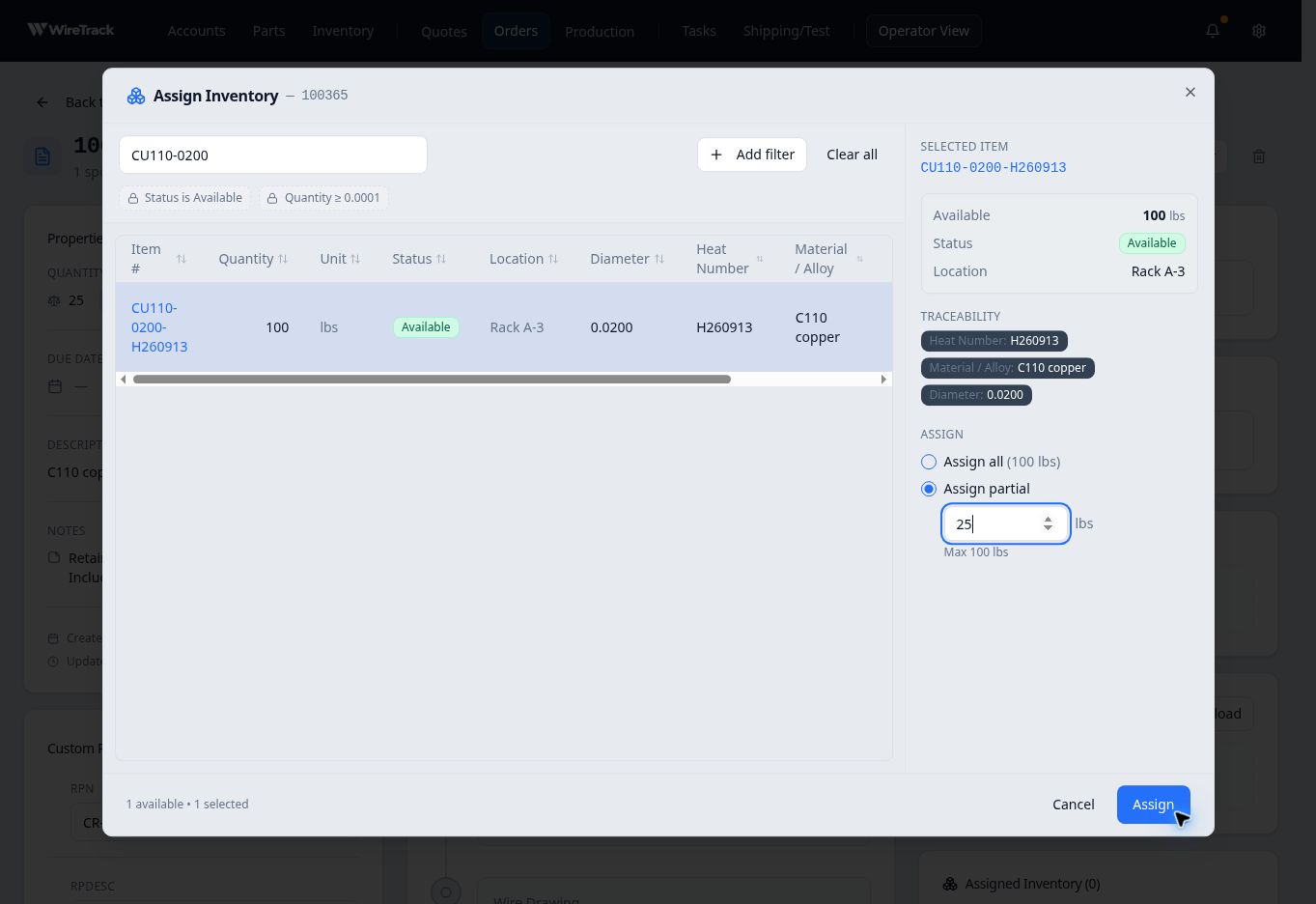
Assign partial is selected so the remaining 75 lbs stays available. - Save and verify the assignment
Select Assign. Reopen the order and find Assigned Inventory. Check the item number and assigned amount.
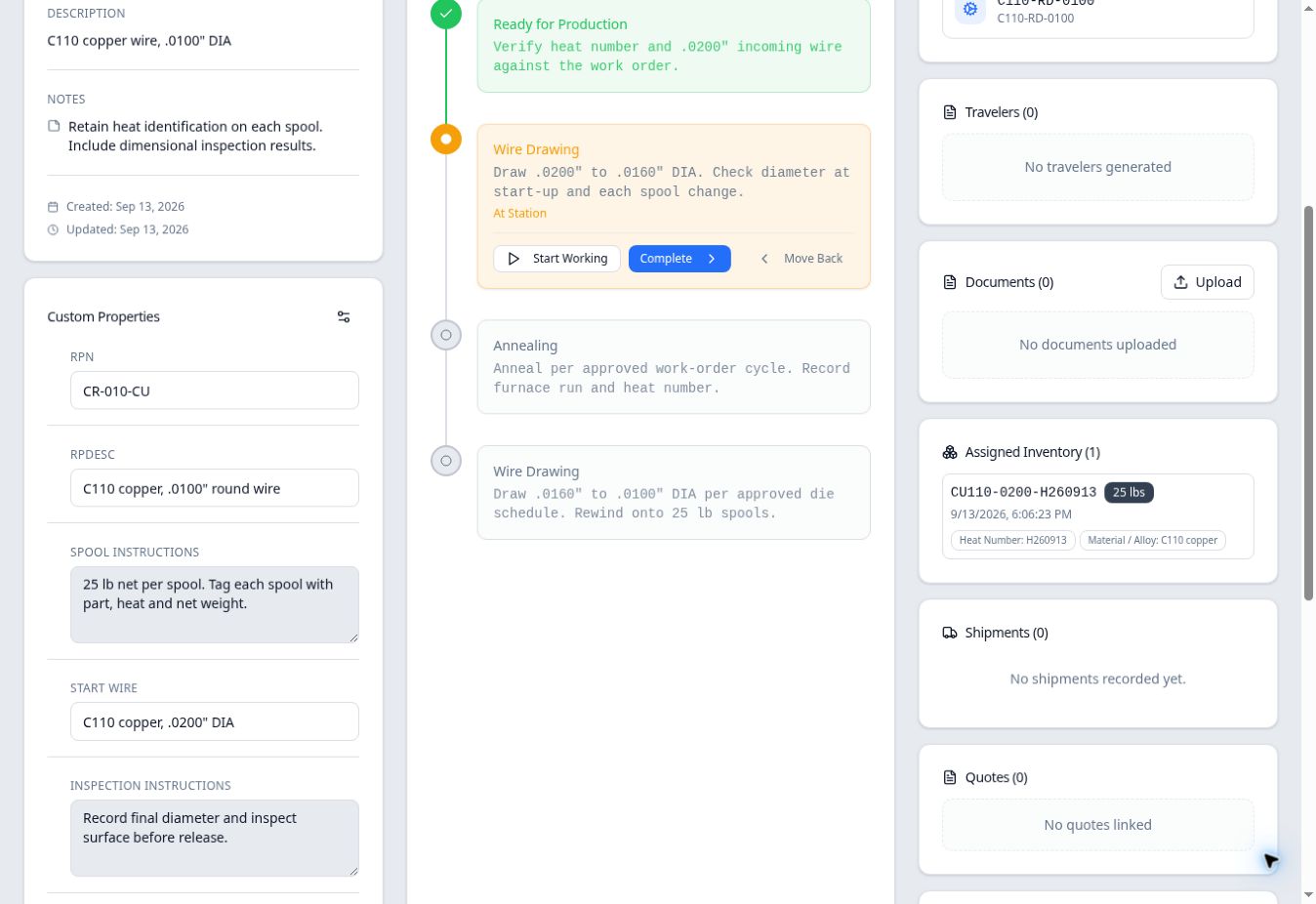
The saved assignment appears on the order. - Check the remaining inventory
Open Inventory and search for the same item. In this example, its quantity changed from 100 to 75 lbs, and its status remained Available.
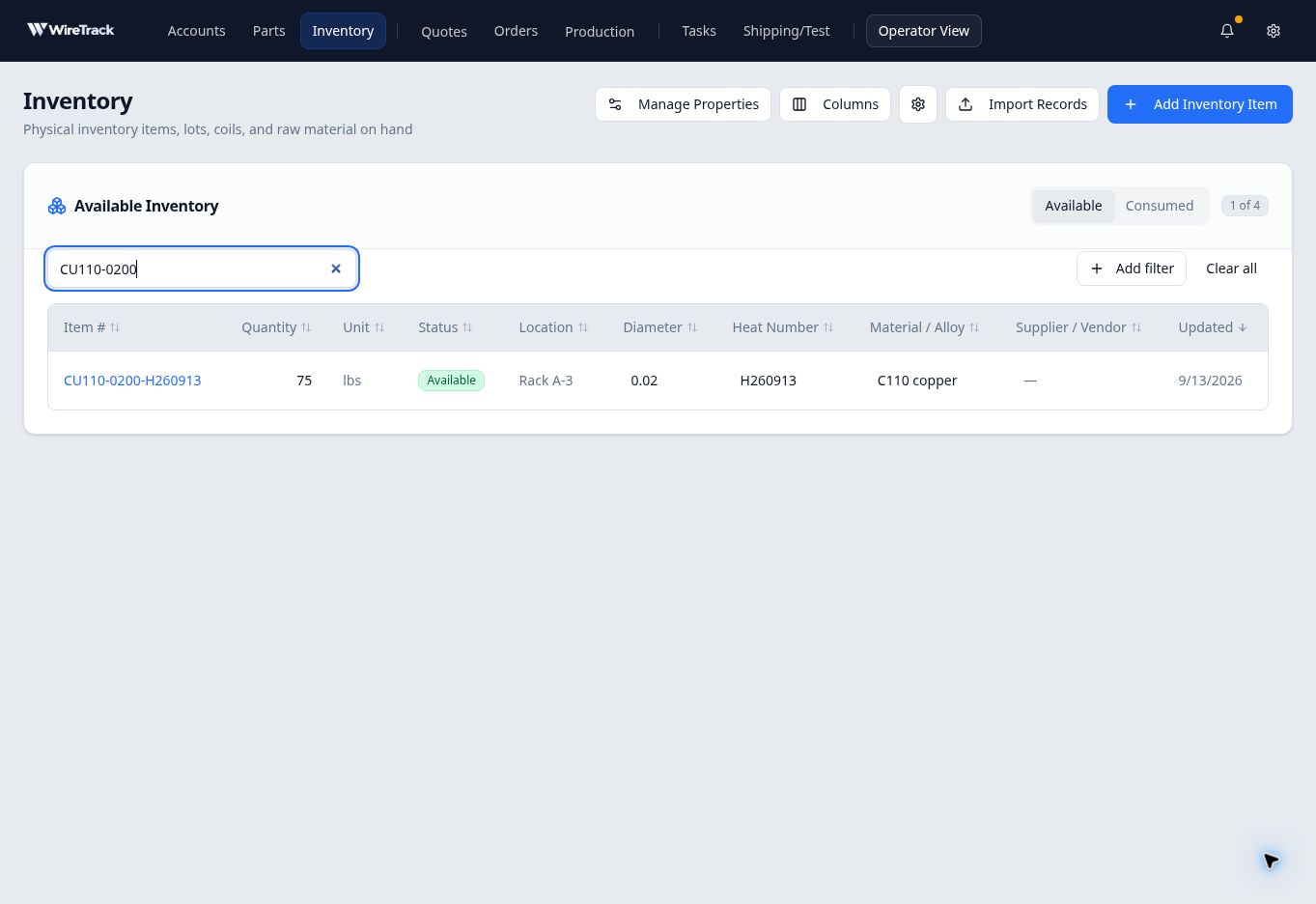
Verify the remaining balance as well as the assignment on the order.
Expected result
If an item is missing
Check your search and optional filters. The required availability and minimum-quantity filters remain in place; clearing your search does not remove those eligibility conditions.