
Attach and archive inventory documents
Attach a receiving document to an inventory item, check its saved entry, and archive it when it should no longer appear on the item or linked allocations.
Before you start
You need access to the inventory item and permission to manage its documents. Have the correct file ready and check its item or heat reference. This example uses a receiving reference for CU110-0200-H260915; it is not a supplier certificate or test result.
Attach and check a document
- Open the inventory document section
Find the item in Inventory and select its row. In Edit Inventory Item, scroll down to Certs / Documents, below the custom fields and any Quantity Adjustments. Select Add Document on the right of that section heading.
- Choose the file and describe it
In Add Document, choose Document type. This example uses Receiving Doc. Select the file using Choose File, and add a Display name and Notes if useful.
Here, Receiving-H260915.txt is displayed as Receiving record — H260915. Check the selected filename before uploading.
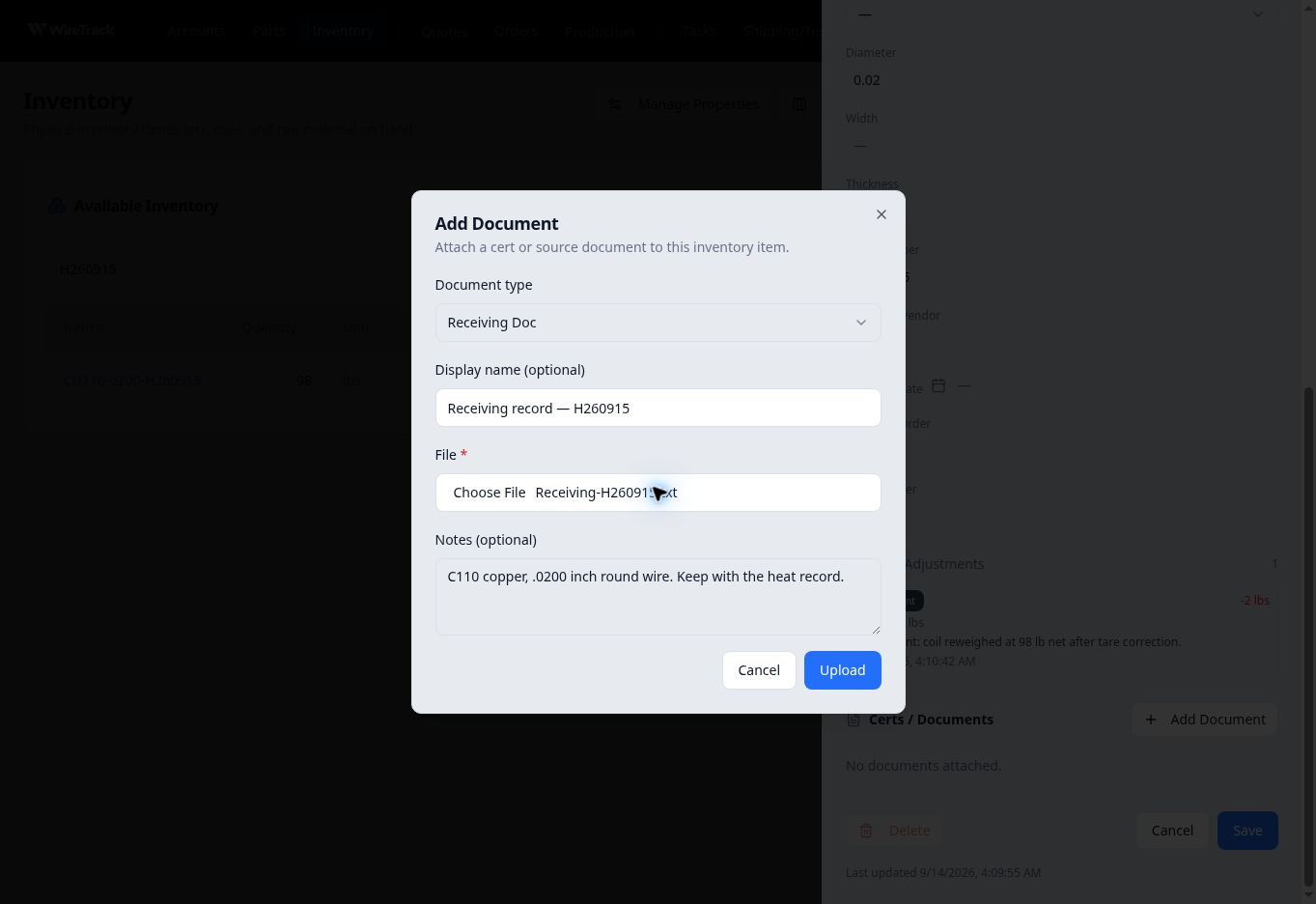
Choose the document type and file, then add a recognizable name and concise note. - Upload and verify the saved entry
Select Upload. When the dialog closes, check the new entry in Certs / Documents. Select the Open icon at the right of the entry to open the file and check its contents.
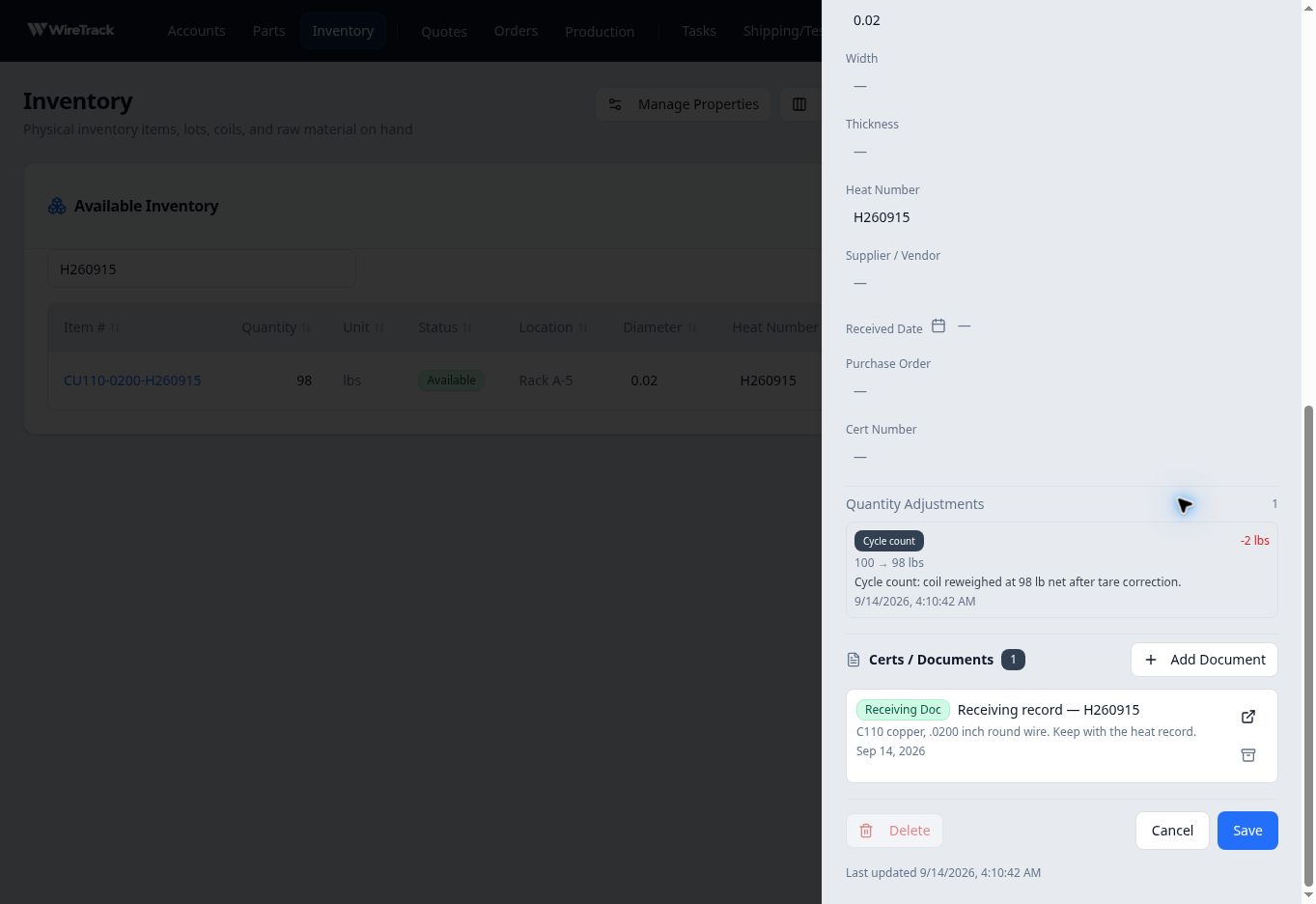
The saved entry identifies the document type, display name and note. This capture is from before archival. Close and reopen the inventory item to check that the attachment remains listed. An order allocation referencing this item can also list it under Source Inventory Documents.
Archive the document
- Check the entry to be archived
In Certs / Documents, locate the correct document and select its Archive icon, below Open at the right of the entry.
- Review and confirm archival
Read Archive this document? The confirmation explains that the document will be hidden from the inventory item and orders that referenced it, while the underlying file is retained for traceability.
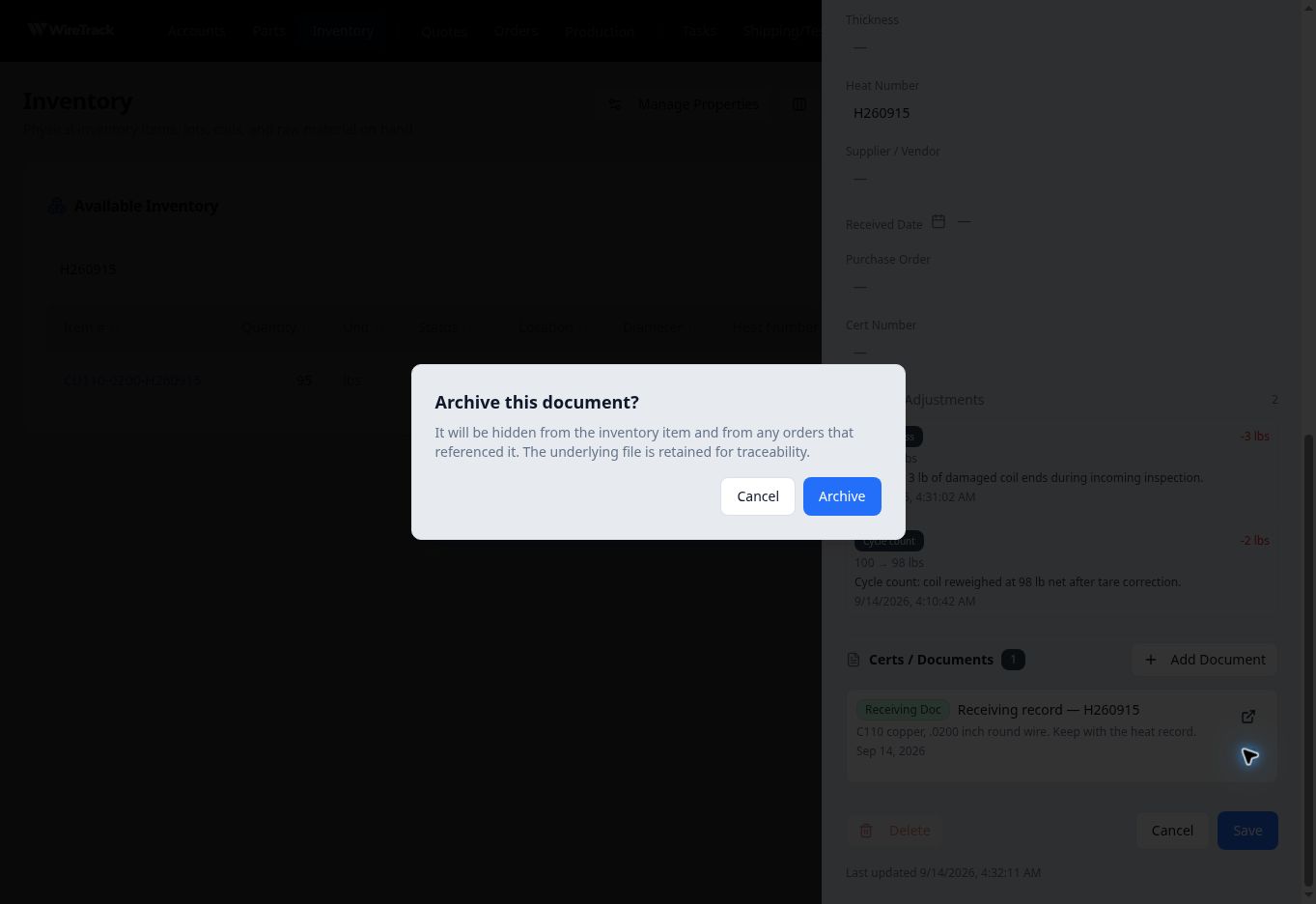
Archiving hides the document from these lists; the confirmation says its underlying file is retained. Select Archive if that is the intended result.
- Check both affected views
Reopen the inventory item and confirm the entry is absent from Certs / Documents. If an order references the item, open its allocation and check Source Inventory Documents as well.
In this example the receiving reference disappeared from both sections. The allocation snapshot and reversal history remained available.