
Find available and consumed inventory
Choose the Available or Consumed inventory view, find wire lots with search or combined alloy and diameter filters, and check their saved details.
Before you start
You need access to Inventory. Have the item number or storage location ready, or the material and dimensions you need. The filter example below uses the configured Material / Alloy and numeric Diameter fields; field names depend on your setup. Check the quantity and unit on the record before using it for an order.
Find an inventory item
- Choose the inventory view
Open Inventory in the top navigation. Select Available or Consumed, at the top right of the inventory card above the table.
View What to look for Available Items marked Available. Read the Quantity and Unit columns to check the recorded balance. Consumed Items marked Consumed. A zero-balance item can still be opened here to review its details and history. - Search within the selected view
Enter the item number in Search by item #, name, or location…, above the table on the left. You can also search by name or location.
In this example, searching for H260915 in Available finds CU110-0200-H260915 with 95 lbs at Rack A-5.
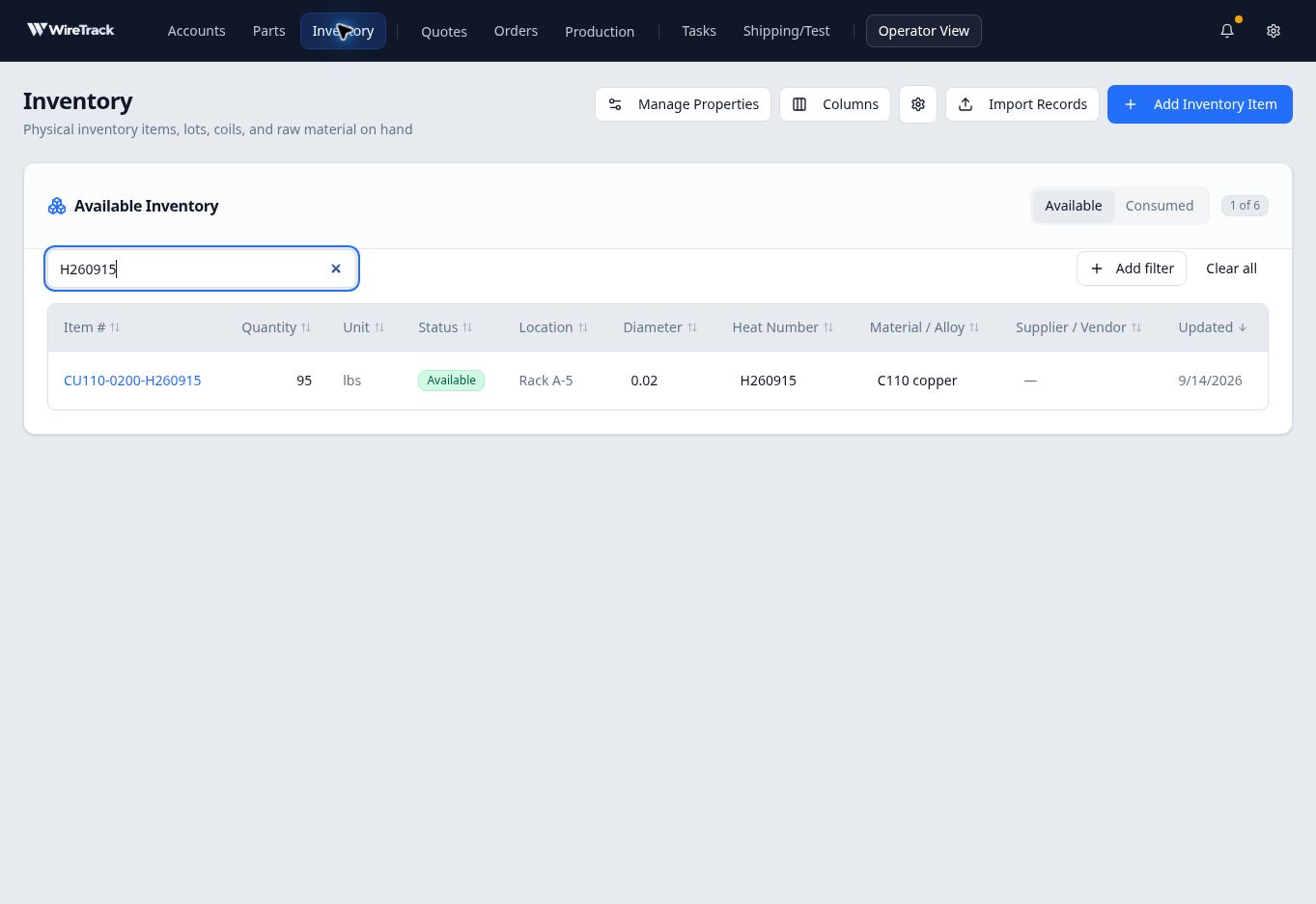
Check the item number, quantity, unit and location in the matching row. - Filter by alloy and diameter
Use filters when you know the material and size you need but not the item number. For example, find C110 copper with a diameter of 0.018 inch or larger in Available. Select Clear all if a previous search or filters are active.
Select Add filter, above the table on the right, then Material / Alloy. Choose equals from the comparison dropdown, enter C110 copper in Value, and select Apply.
Select Add filter again, then Diameter. Choose ≥ greater than or equal to, enter 0.018, and select Apply. Enter the number in the units used for that field; this example records diameter in inches. The comparison includes the threshold itself.
Both filters now appear below the search box. The results must meet both conditions. Here, three C110 copper lots match, each with a recorded diameter of 0.02.
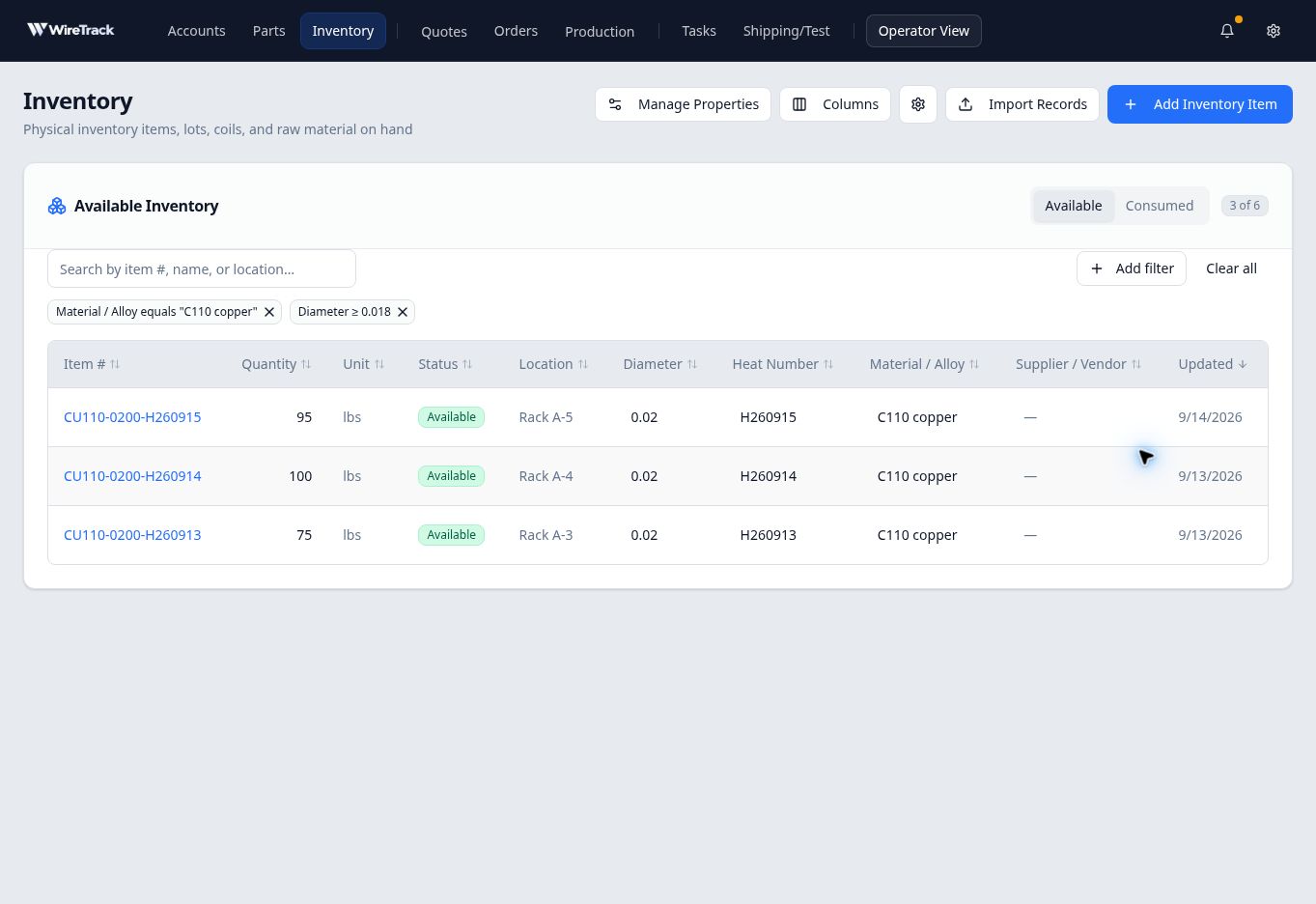
Combine material and size filters to find suitable lots without knowing their item numbers. You can still search within these results: entering H260915 narrows the example to one lot. Select Clear all to remove the search and added filters before starting another lookup.
- Look in Consumed when needed
Select Consumed. Search text and added filters remain when you switch views. Use Clear all to start a new lookup, or adjust them for the item you need.
The separate item CU110-0160-H260916 below has 0 lbs and a Consumed status. Its balance was reduced from 5 lbs to zero through a Scrap / loss adjustment. It no longer appeared in Available and remained in Consumed after reopening Inventory.
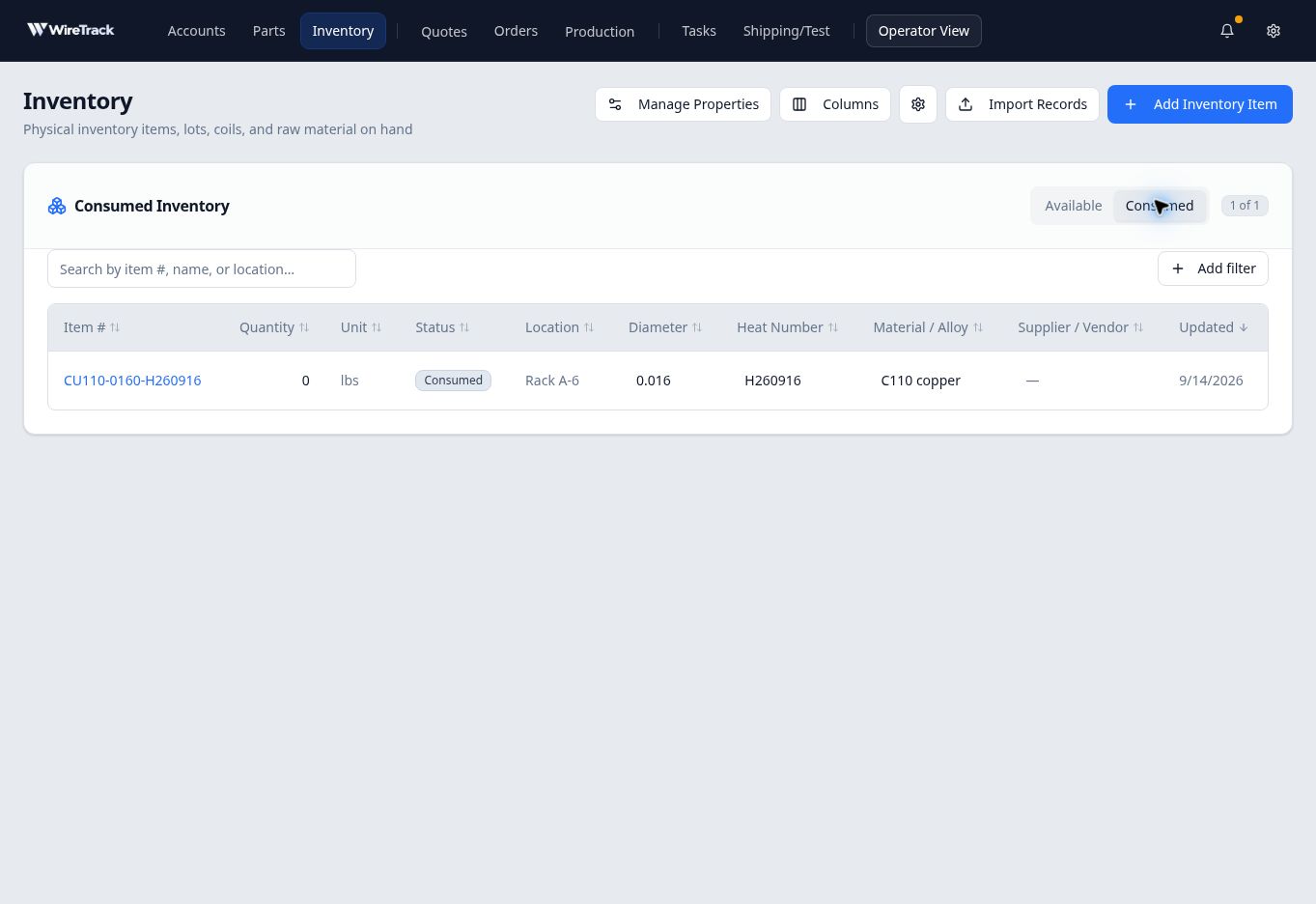
Consumed records remain available for reference; this example has a saved zero balance. - Open and check the record
Select the item’s row to open Edit Inventory Item. Check its item number, Quantity, Unit, Status and Location. Scroll down to review any Quantity Adjustments and Certs / Documents. Select Cancel when you have finished reviewing without making changes.
If the item is missing
Check both views and the search text. No inventory items match the current filters. describes the selected view and filters; it does not establish that the item was deleted. Use Clear filters when offered to remove the current filtering, then search again in the appropriate view.