
Create an inventory item
Record an incoming wire lot with its quantity, unit, location and configured material fields, then verify it in Available Inventory.
Before you start
You need access to Inventory and permission to add stock. Have the item or lot identifier, measured quantity, quantity unit, storage location and relevant material information ready.
This example records 100 lbs of .0200-inch C110 copper wire under item CU110-0200-H260914, heat H260914, at Rack A-4.
Record the incoming lot
- Open Add Inventory Item
Select Inventory in the top navigation. Use the search box above the inventory table to check whether the item number is already recorded, then select Add Inventory Item, at the top right beside Import Records.
- Enter quantity, unit and location
Enter Item Number, Quantity, and Unit. This example uses 100 and lbs. Keep Status set to Available for this available incoming lot, and enter its Location.
Add relevant Notes, such as the incoming wire size and heat-identification requirements.
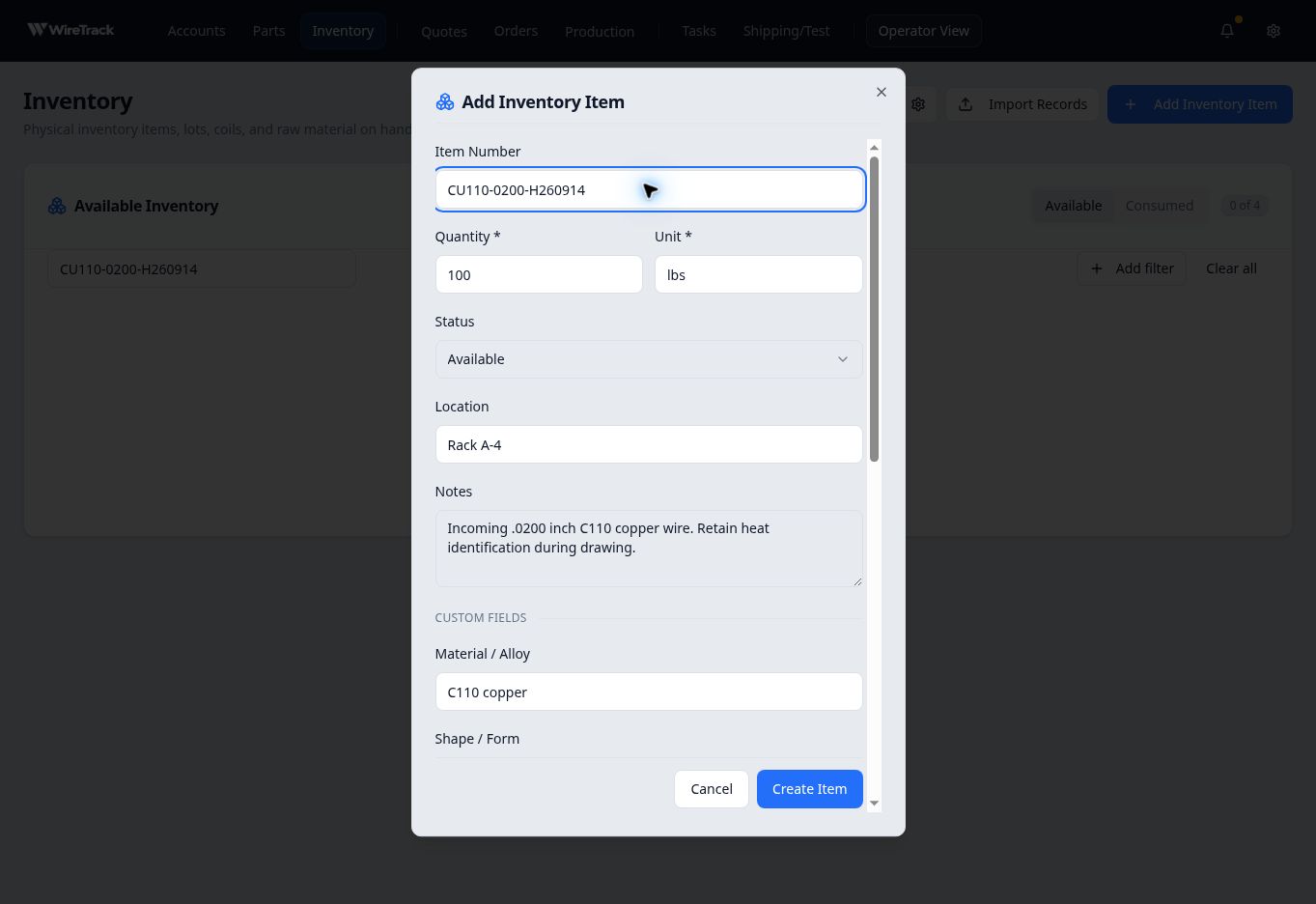
Check the item identifier, quantity and unit before recording the lot. - Complete the material fields
Scroll down to Custom Fields. In this example, Material / Alloy is C110 copper, Shape / Form is Round Wire, Diameter is 0.0200, and Heat Number is H260914.
Use your company’s configured fields and dimensional units. The quantity unit, such as lbs, describes the amount of stock; it does not define the unit of every dimensional field.
- Create and reopen the item
Select Create Item and wait for the form to close. Search for its number in Available Inventory and check the row. Select the item number to open its details and confirm the stored values. Use Cancel to close the details if you are only reviewing them.
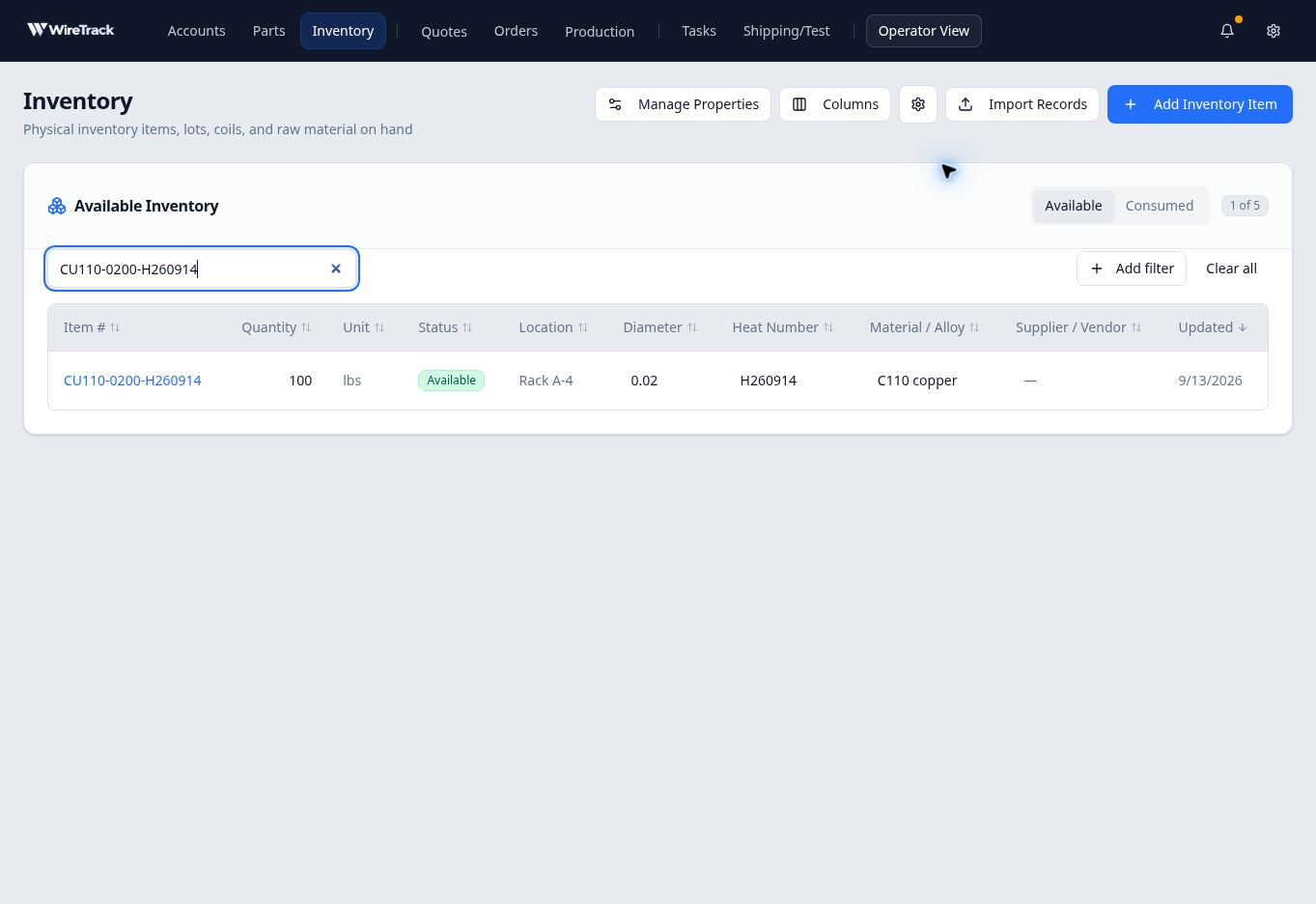
The saved row shows the lot’s quantity, location and identifying material information.
Expected result
Before assigning material
Adding the item records stock on hand. Assigning it to an order is a separate action; follow Assign inventory to an order in Related reading when you are ready to allocate material.
If custom fields differ, complete the fields required by your company and check their saved values before allocating the lot.