
Adjust inventory quantity with a reason
Record a corrected inventory balance with an adjustment type and reason, then verify the saved quantity and its history entry.
Before you start
You need access to Inventory and permission to adjust the item. Have the verified new balance and an explanation ready. Enter the new total balance in the item’s unit, rather than the amount to add or subtract.
Record the adjustment
- Open Adjust Quantity
Find the item in Inventory and select its row. In Edit Inventory Item, select Adjust Quantity, beside the Quantity label near the top of the panel.
Check the item number and Current quantity in the dialog before continuing.
- Set the type, new balance and reason
Select the appropriate Adjustment type, enter New quantity, and provide a Reason. Check the displayed increase or decrease before saving.
The cycle-count example changes 100 lbs to 98 lbs, so New quantity is 98 and the displayed change is -2 lbs. The reason explains the tare correction.
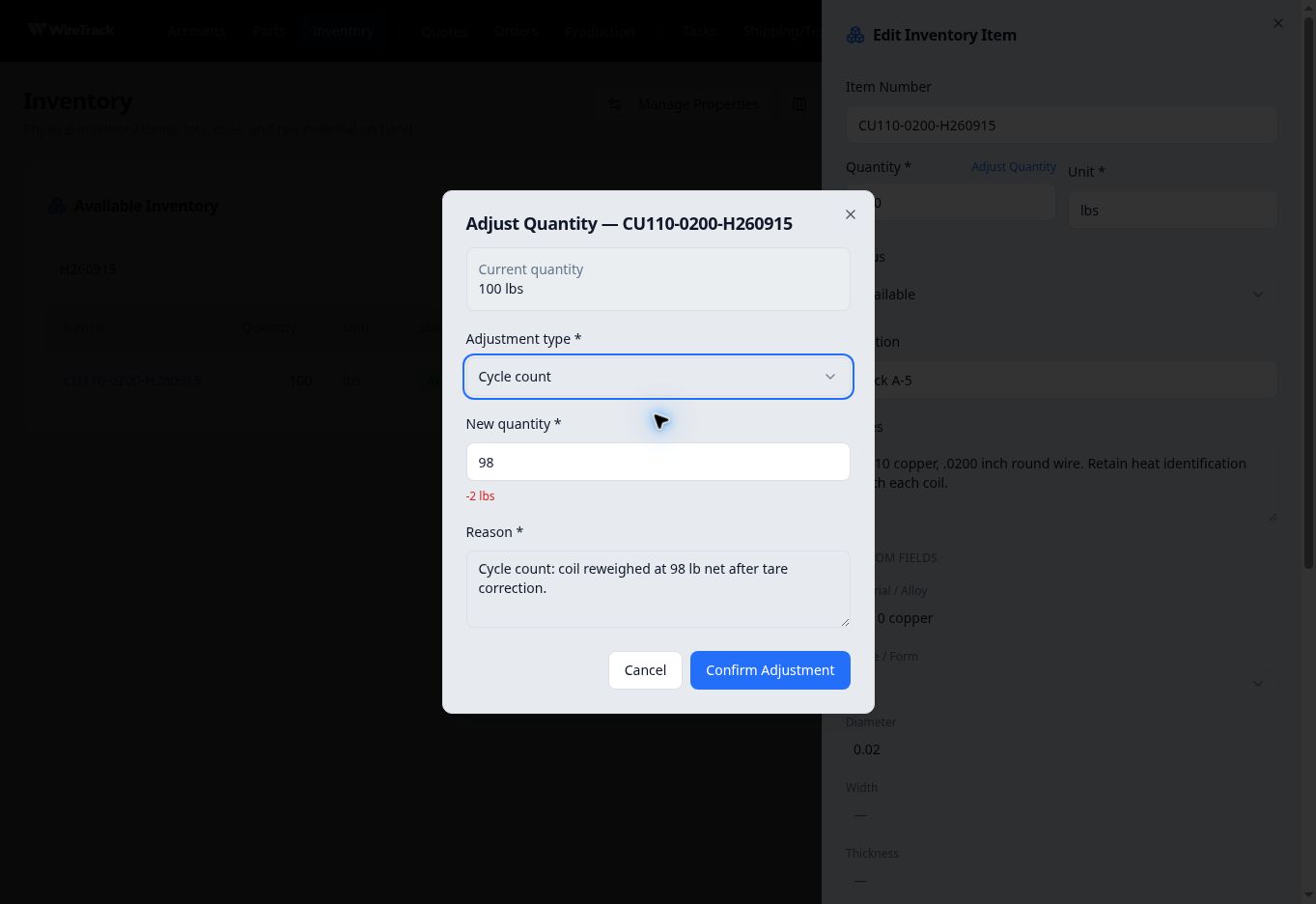
Enter the new total balance and check the calculated change. Examples verified here:
Adjustment type Example reason Cycle count Cycle count: coil reweighed at 98 lb net after tare correction. Scrap / loss Removed 3 lb of damaged coil ends during incoming inspection. - Confirm and check the saved balance
Select Confirm Adjustment. This saves the adjustment. Close Edit Inventory Item with Cancel, then reopen the item to verify the saved balance; you do not need to save the edit form again.
- Review Quantity Adjustments
Scroll down to Quantity Adjustments, above Certs / Documents. Check the adjustment type, change, before-and-after quantities and reason.
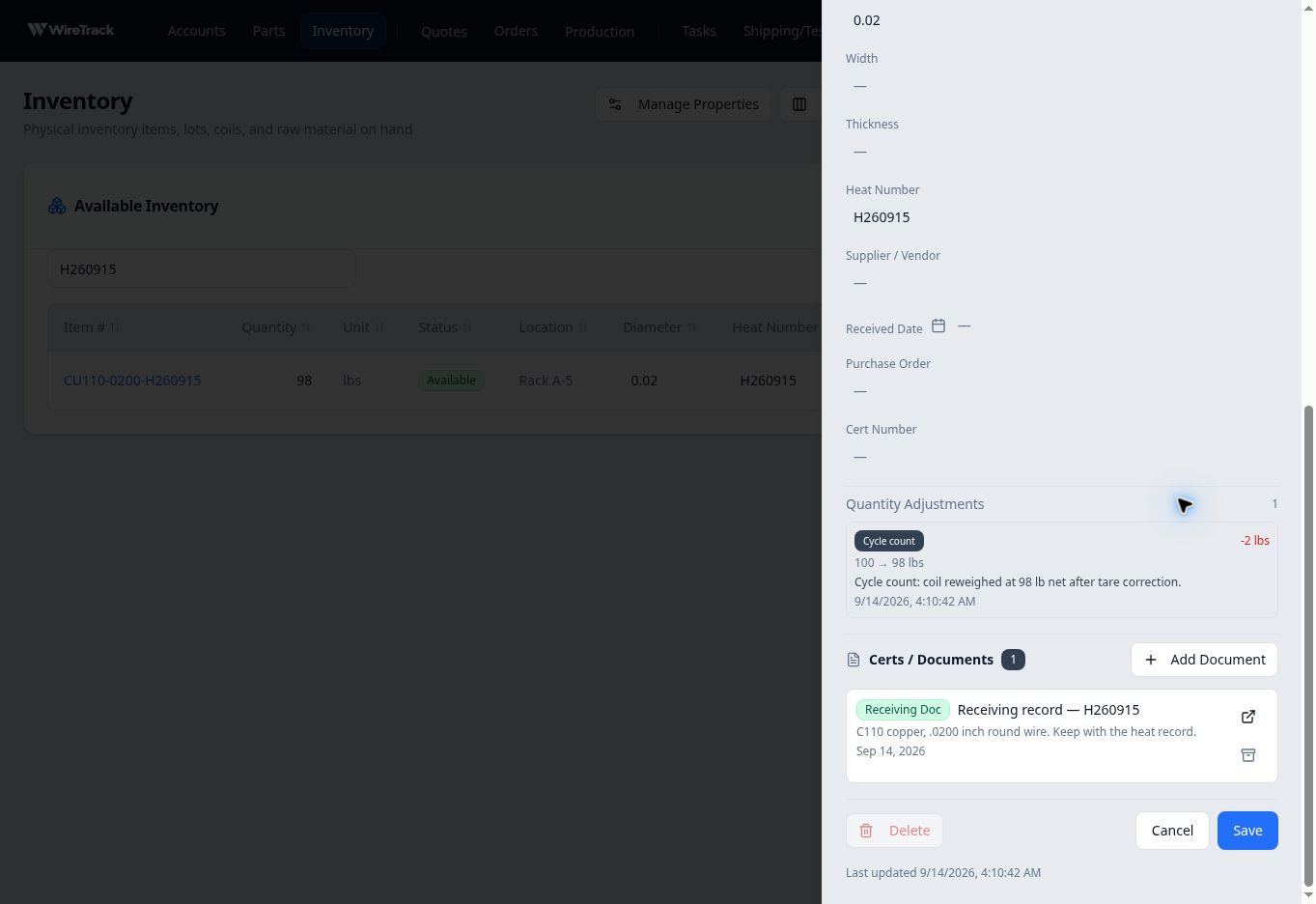
This capture shows the cycle-count entry immediately after the first adjustment. Later activity can change the current balance again. An older history entry still describes the balance change recorded at that time.
When the new balance is zero
In the separate CU110-0160-H260916 example, a Scrap / loss adjustment changed 5 lbs to 0 lbs. The item moved from Available to Consumed. Reopening it from Consumed confirmed the zero quantity and retained adjustment reason.