
Review assigned inventory and source documents
Inspect an order’s inventory allocation, distinguish its saved snapshot from the live balance, and locate current source inventory documents.
Before you start
You need access to an order with an inventory assignment or retained reversed allocation. Confirm the order number before reviewing its material records.
Read the allocation
- Open Assigned Inventory
On the full order page, find Assigned Inventory in the right-hand column below Documents. Select the item row to open Inventory Allocation.
If only reversed allocations remain, turn on Show reversed to make those rows visible, then select the entry you need.
- Separate the live values from the snapshot
Check Assigned and Status, then read Source Inventory and Snapshot at allocation.
Section or field How to read it Assigned The quantity recorded for this allocation. Check Status to see whether it is Active or Reversed. Current remaining (live) The source inventory item’s current balance, which can change after this assignment. Snapshot at allocation The saved before, allocated and after quantities, plus the item details recorded for that event. Source Inventory Documents Documents currently attached to the source item. This list can change independently of the allocation snapshot. The capture below shows 25 lbs assigned, a 70 lb live balance, and an original snapshot of 98 / 25 / 73 lbs. A 3 lb loss adjustment occurred after assignment, so the live balance differs from Quantity after.
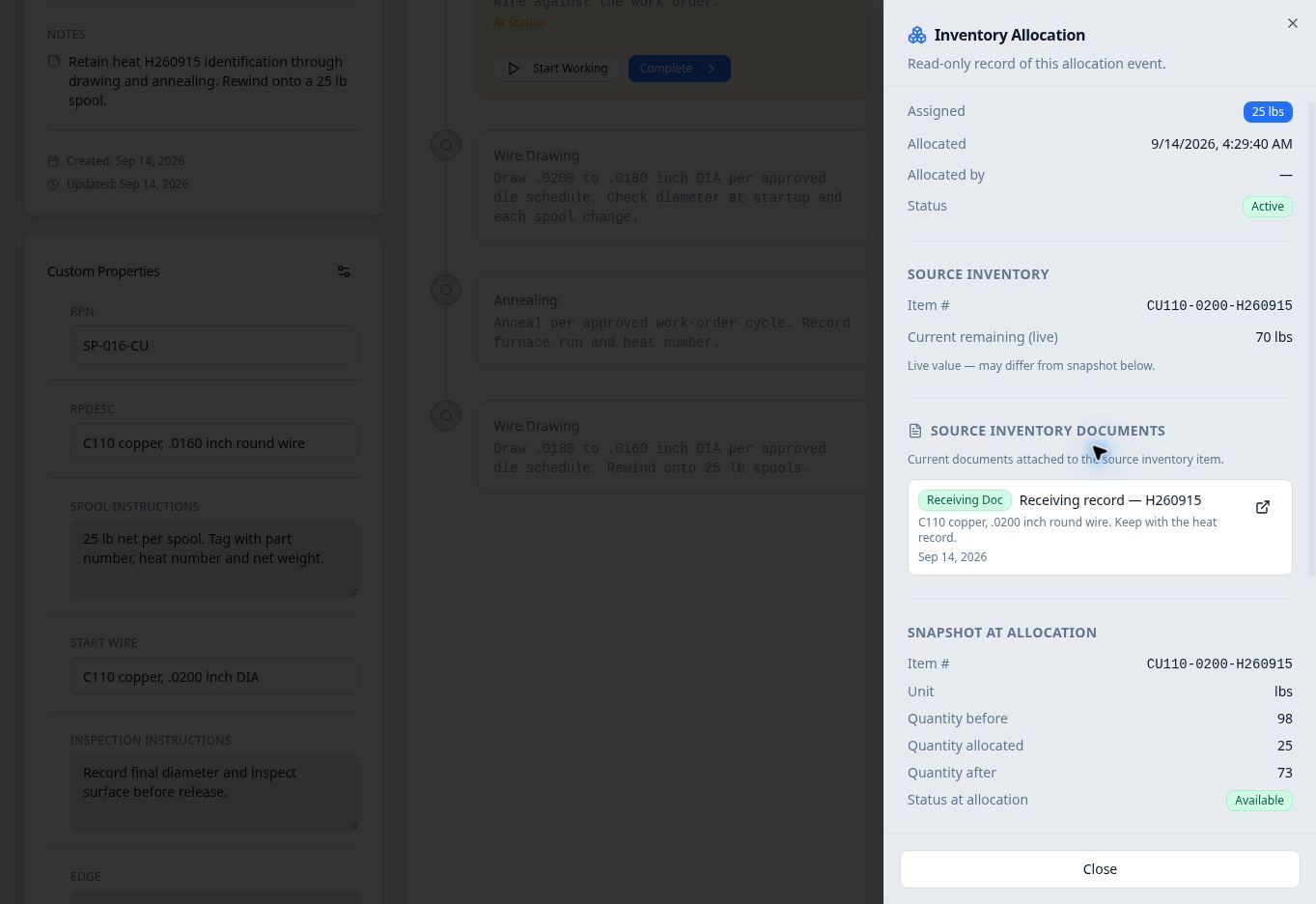
This capture is from before reversal and document archival. The live balance already differs from the saved allocation snapshot. - Open a current source document
Find Source Inventory Documents between Source Inventory and the snapshot. When a document is listed, select its Open icon at the right of the row to open the attached file. Check the document title and heat or item reference.
This example originally listed Receiving record — H260915. After that document was archived on the inventory item, this section displayed No source inventory documents attached. The snapshot quantities stayed unchanged.
These are source-inventory attachments. Files uploaded directly to the order are in its separate Documents card.
- Check retained reversal details
For a reversed allocation, scroll to Reversal to read the recorded time and reason. The original snapshot remains available.
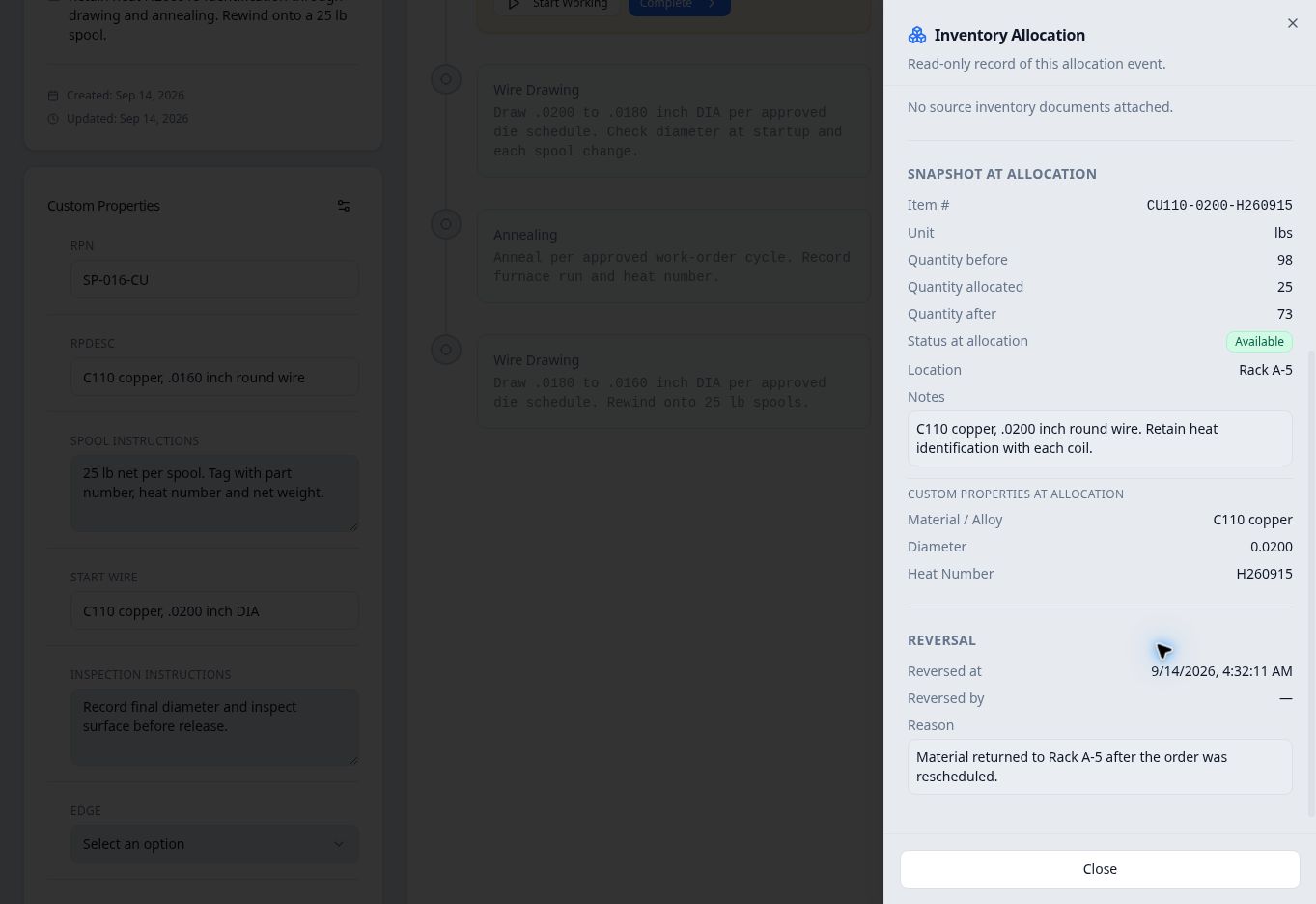
The receiving document is no longer listed, while the allocation snapshot and reversal reason remain. In this example the later reversal restored the live balance to 95 lbs, while the original snapshot remained 98 / 25 / 73. Select Close to return to the order.