
Reverse an inventory assignment
Return an assigned quantity to its source inventory item, record a reversal reason, and inspect the retained allocation history.
Before you start
You need access to the order and permission to reverse its inventory assignment. Confirm that the material should be returned to the available inventory balance. Reversing an assignment changes the recorded balance; check the source item and amount before confirming.
This example reverses 25 lbs assigned from CU110-0200-H260915 to order 100371. The source had 70 lbs remaining immediately before reversal.
Reverse the assignment
- Open the allocation record
Open the order in Orders and confirm its number. Find Assigned Inventory in the right-hand column below Documents, then select the allocation’s item row. The Inventory Allocation panel opens.
Check Assigned, Status, the source Item #, and Current remaining (live). Use the original allocation snapshot below them to confirm which assignment you are reviewing.
- Enter the reversal reason
Scroll down to Reversal and select Reverse allocation. In Reverse this allocation?, enter a Reversal reason explaining why the material is being returned.
The example uses: “Material returned to Rack A-5 after the order was rescheduled.”
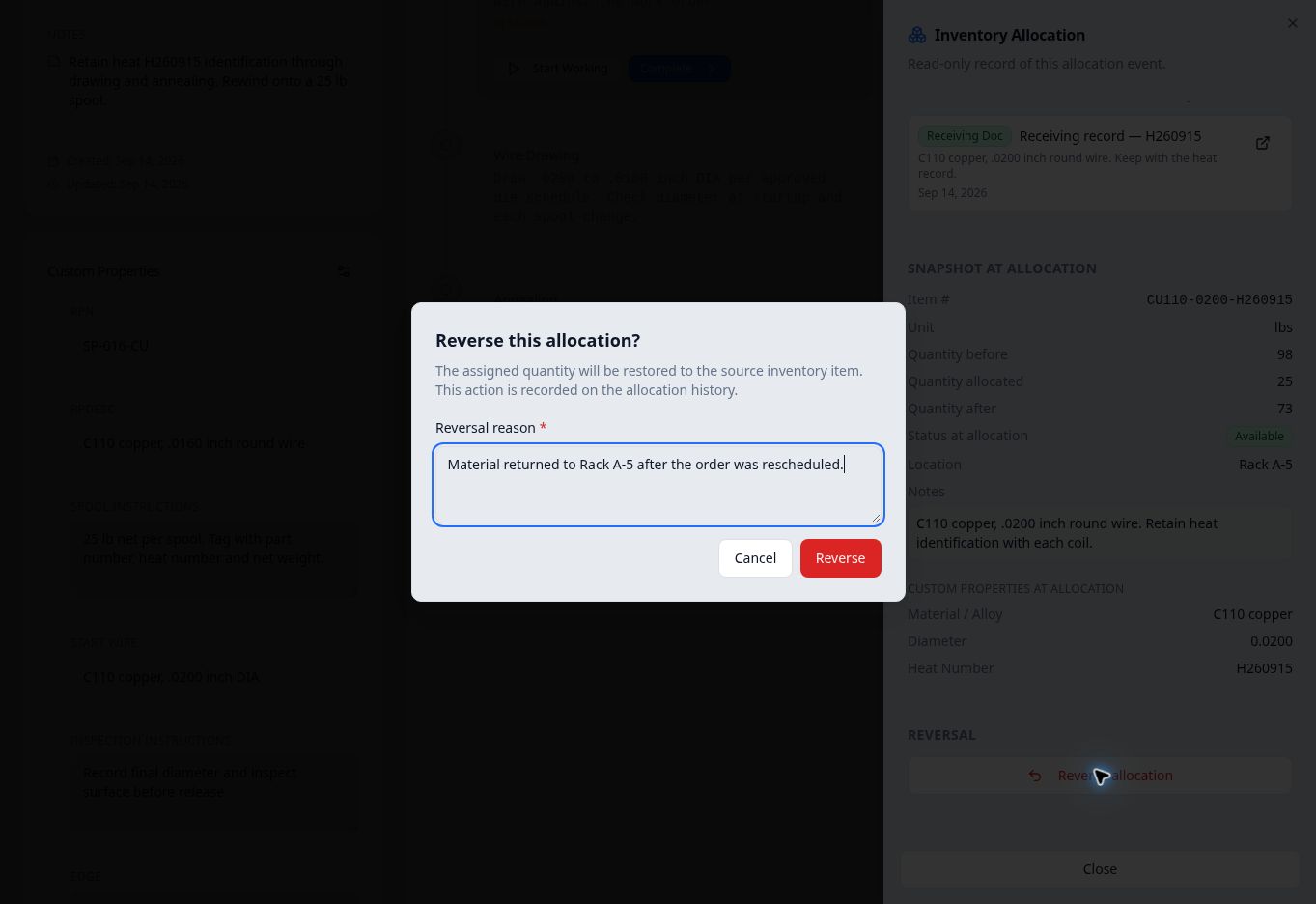
Check the assignment and explain why its quantity should return to the source inventory item. - Confirm and reopen the history
Select Reverse. Close the panel and reopen the order. In Assigned Inventory, turn on Show reversed, then select the reversed entry.
The example now has Assigned Inventory (0) and Show reversed (1). The retained entry shows the original 25 lbs, its reversal reason and the allocation snapshot.
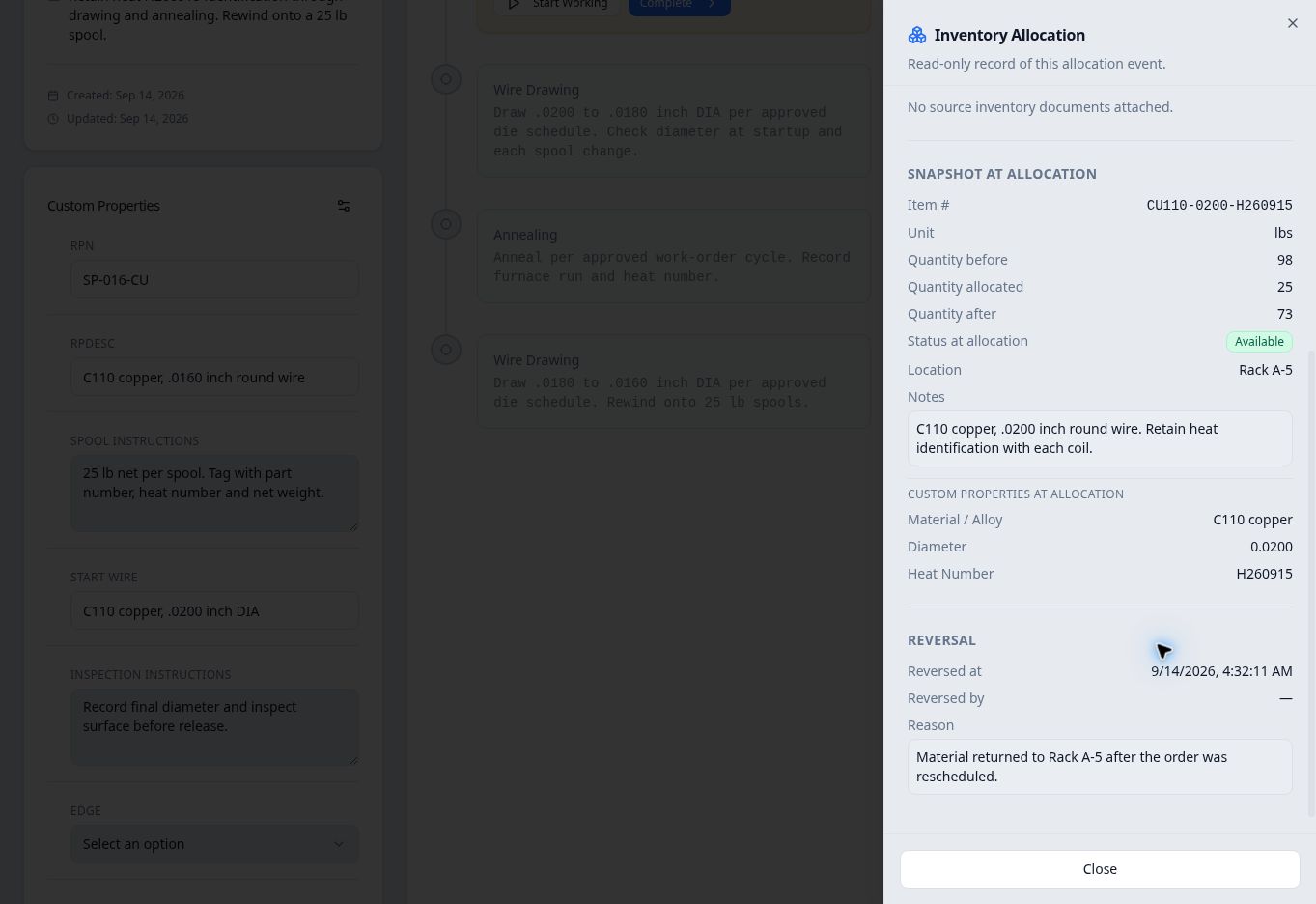
The original allocation snapshot and the reversal explanation remain available in history. - Check the restored source balance
Open Inventory, choose Available, and search for the same item. In this example, returning 25 lbs changed the live balance from 70 to 95 lbs.
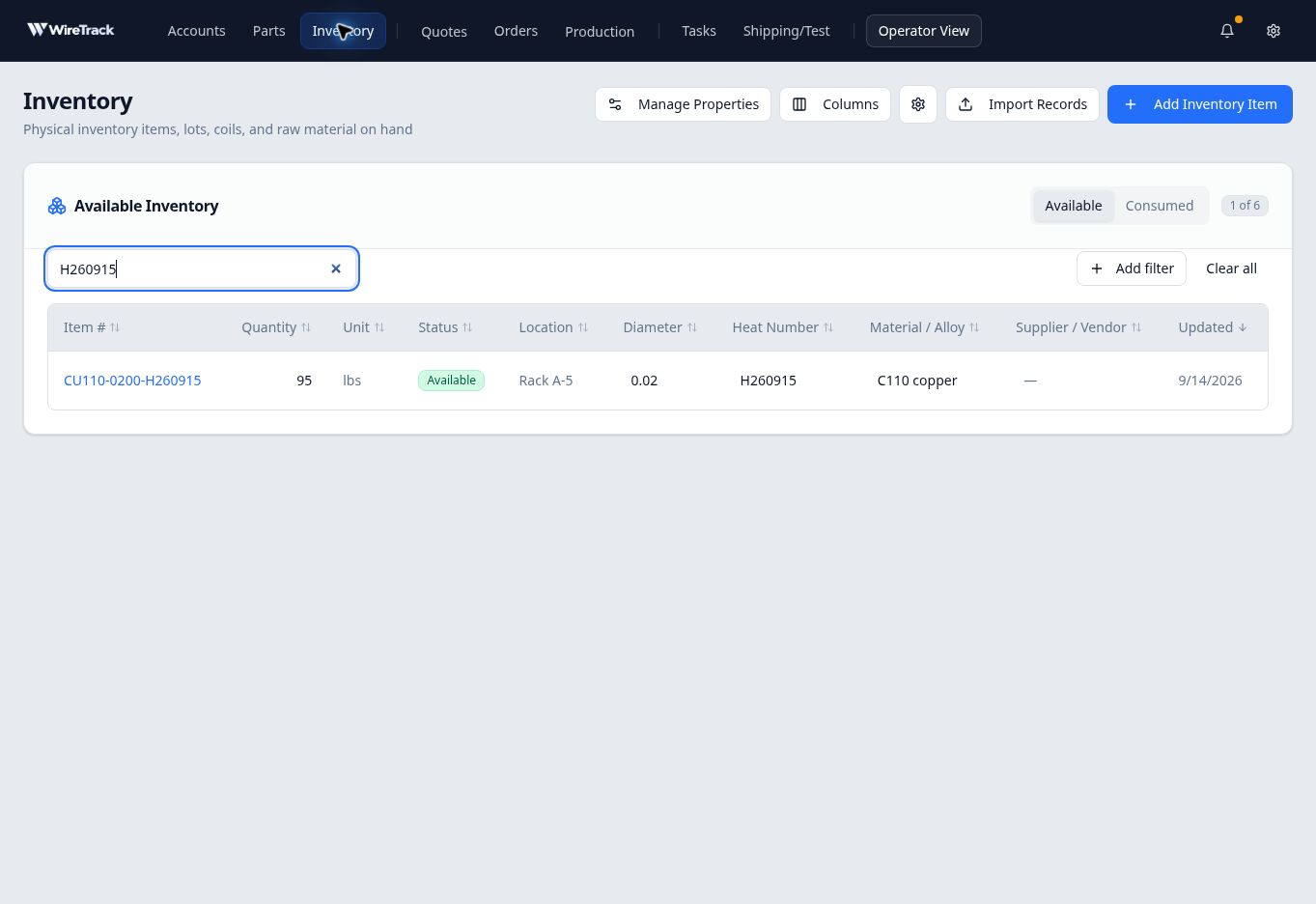
Verify the source balance as well as the reversed entry on the order.
Why the snapshot shows a different balance
The original assignment recorded 98 lbs before, 25 lbs allocated and 73 lbs after. A later 3 lb Scrap / loss adjustment reduced the live balance to 70 lbs before reversal. Reversing the assignment returned its 25 lbs; it did not erase that separate adjustment or rewrite the original snapshot.