
Upload and open order documents
Upload a file to an order, verify that it stays attached after reopening the order, and open the saved document to check its contents.
Before you start
You need access to the order and permission to upload documents. Have the file ready on your computer and confirm that its contents belong to the intended order.
This example attaches Packing-instructions-100371.txt to order 100371 for Summit Precision Springs, part C110-RD-0160. This article covers uploading and opening ordinary order attachments.
Upload and verify the file
- Find Documents on the order
Open the order in Orders and confirm its number, account and part. Scroll to Documents in the right-hand column, below Travelers and above Assigned Inventory.
Check the existing filenames before uploading. If you are returning after an interrupted upload, reopen the order first to see whether the file was already saved.
- Select the file to upload
Select Upload, at the right of the Documents heading. Choose the intended file in your computer’s file picker and confirm the selection. The upload starts when you select the file; there is no second upload form in this flow.
Wait for the filename to appear under Documents. In this example, the card changes from Documents (0) to Documents (1).
- Reopen the order and check persistence
Reopen the same order and find Documents again. Confirm that the saved filename is still listed. The entry also displays its upload date and time.
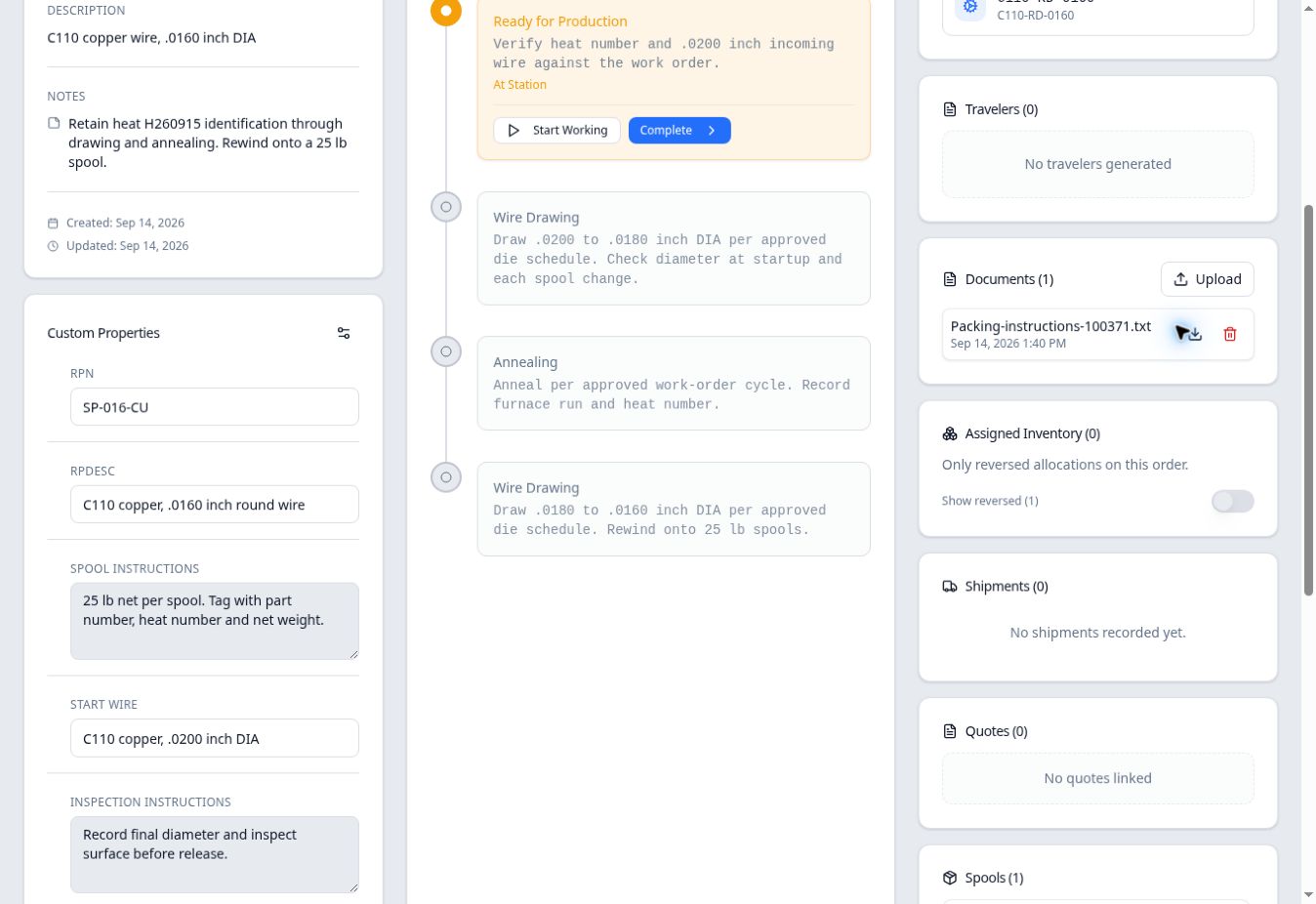
The attachment remains listed after reopening. Use the download icon beside the filename to open it. - Open and check the saved document
Select the download icon, immediately to the right of the filename and left of the trash icon. In this text-file example, the saved file opens in a new browser tab.
Check that the contents match the order. Here they identify order 100371, C110-RD-0160 and heat H260915, followed by the spool-tagging and surface-protection instructions.

Read the opened file to confirm that the saved attachment contains the intended instructions. Return to the order tab when finished.
Keep the document sections distinct
Documents holds files uploaded directly to the order. Generated order travelers appear in Travelers. An inventory allocation’s Source Inventory Documents section lists attachments on its source inventory item.