
Create and edit a catalog item
Save a reusable item with its description and unit defaults, then verify an edit by reopening it.
Before you start
You need access to Item Catalog and permission to create or edit the intended item. Search for the item first to avoid creating a duplicate. This example creates a standalone packaging item.
Create the item
- Open New Item
Open the Quotes navigation menu and select Item Catalog. Select New Item, beside Import Items at the top right.
- Enter the item details
Enter Name*. In this form it is required; Create stays disabled while it is empty. Add the Item Number and Customer description used to identify the item.
For example, enter Protective spool packaging, PKG-SPOOL-25LB, and a description of the protective wrap and edge guards for one 25 lb wire spool.
Set Default qty unit to EA — Each, Price basis qty to 1, and Price basis unit to EA — Each. These are unit defaults for later pricing, not a selling price.
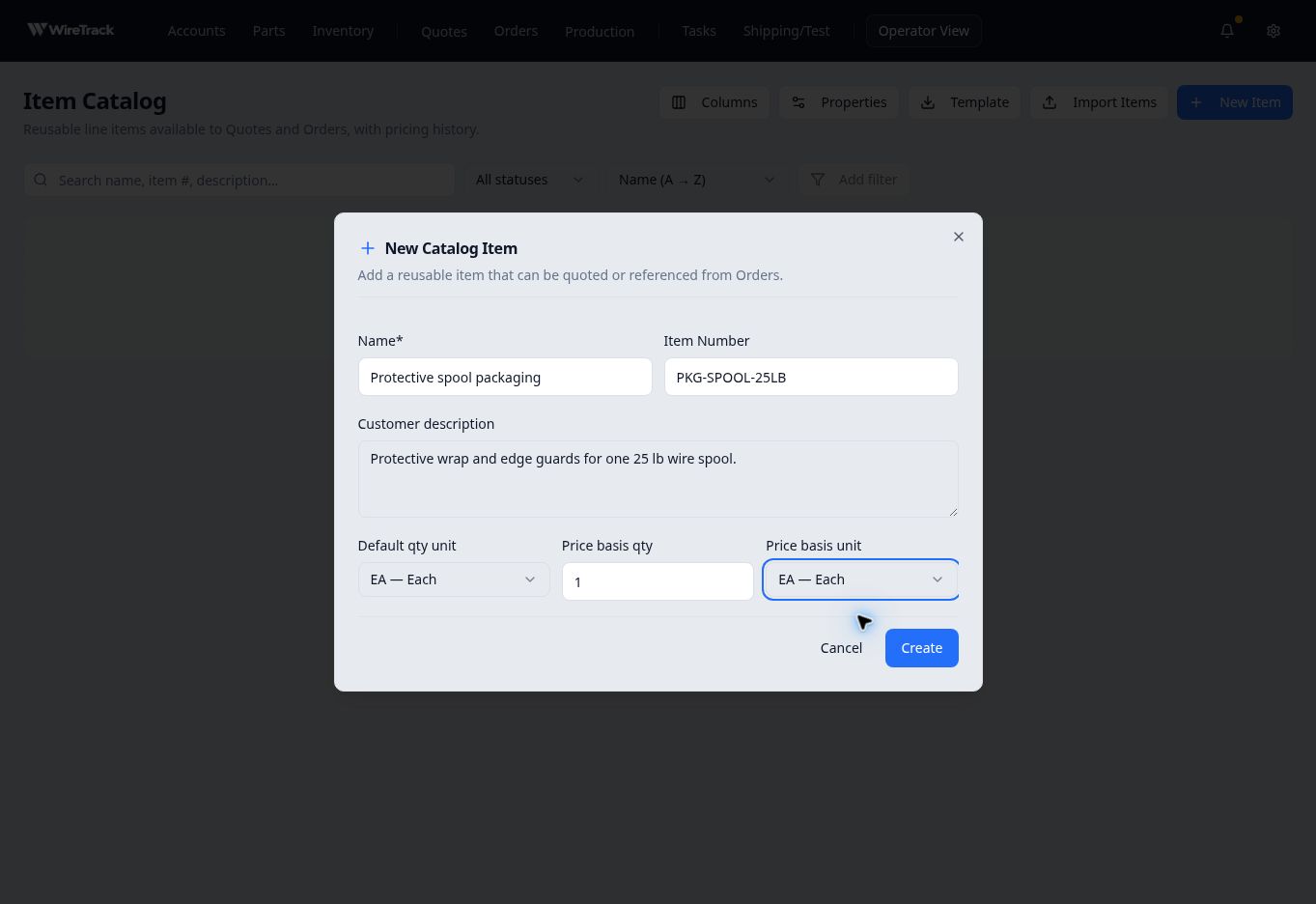
Check the name, identifier, description and units before selecting Create. - Save and find the item
Select Create and wait for the form to close. Find the new row in Item Catalog and check its item number, description, quantity unit and Active status.
Edit and verify the saved values
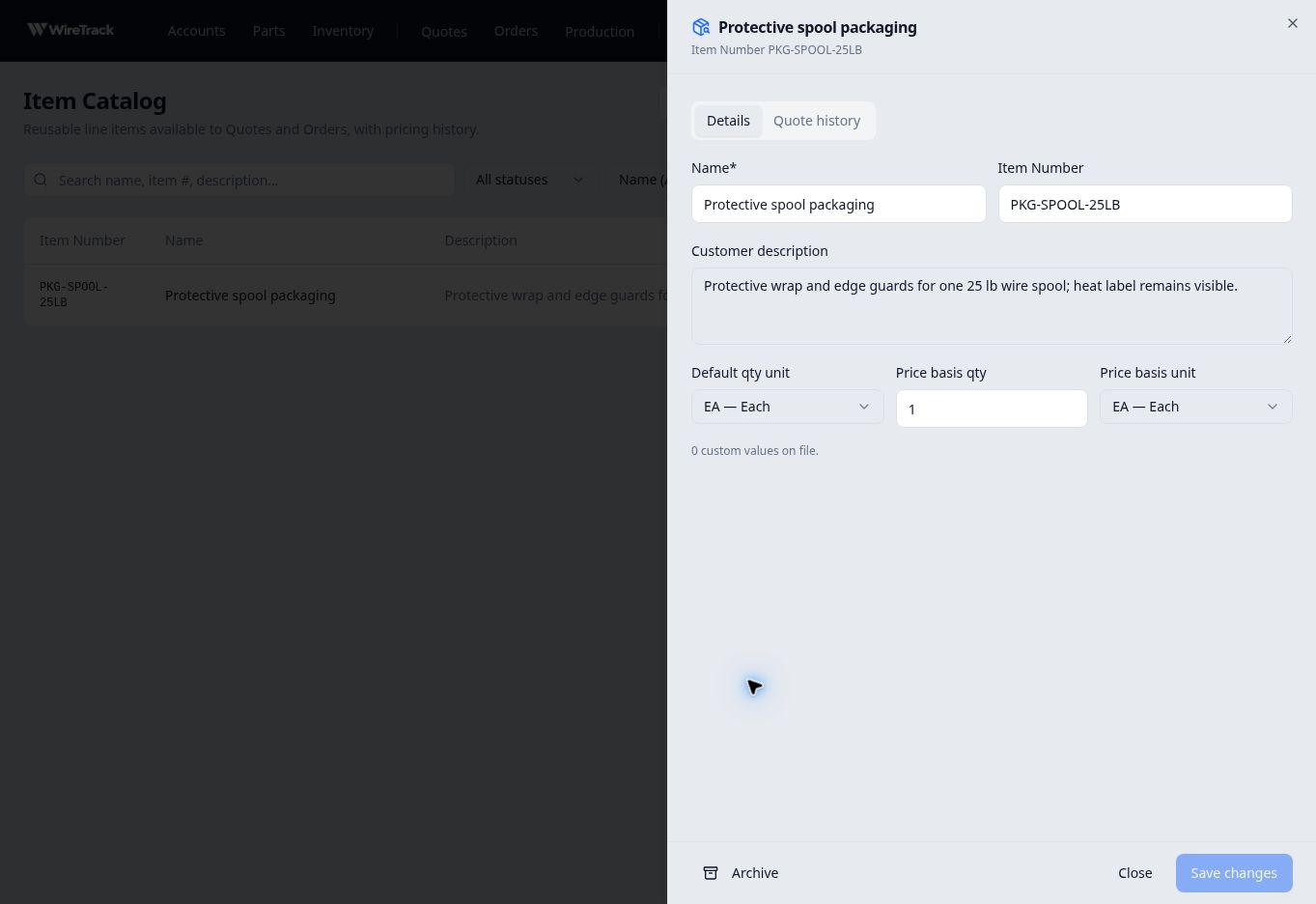
Select the item’s row to open its drawer. On Details, change the needed field and select Save changes at the bottom.
In this example, the description was extended with heat label remains visible. After the update, close the drawer and reopen the same item to confirm the saved description and unit defaults.
If the item number is already in use
In the example configuration, entering an existing number displayed Existing Catalog Items use this Item Number, the matching item and Create another Item with this Item Number anyway. Creation stayed disabled until acknowledgement.
Review the match first. If it is the item you need, select Cancel, then open that existing item. Do not create another record just to change its description. Duplicate handling and the identifier label can vary by company configuration.