
Review shipment history
Open recorded shipment events, inspect their included items and saved fields, and return to the related order.
Before you start
Use Shipping/Test to browse shipment events across orders, or start from a particular order's Shipments card. This article covers reviewing recorded events and saved fields.
Browse shipment events
- Open Shipped History
Select Shipping/Test in the main navigation, then select Shipped History, beside Active Queue.
Each entry shows the order, account, part, number of items shipped and a date/time. Notes also appear when recorded. One order can have several separate entries.
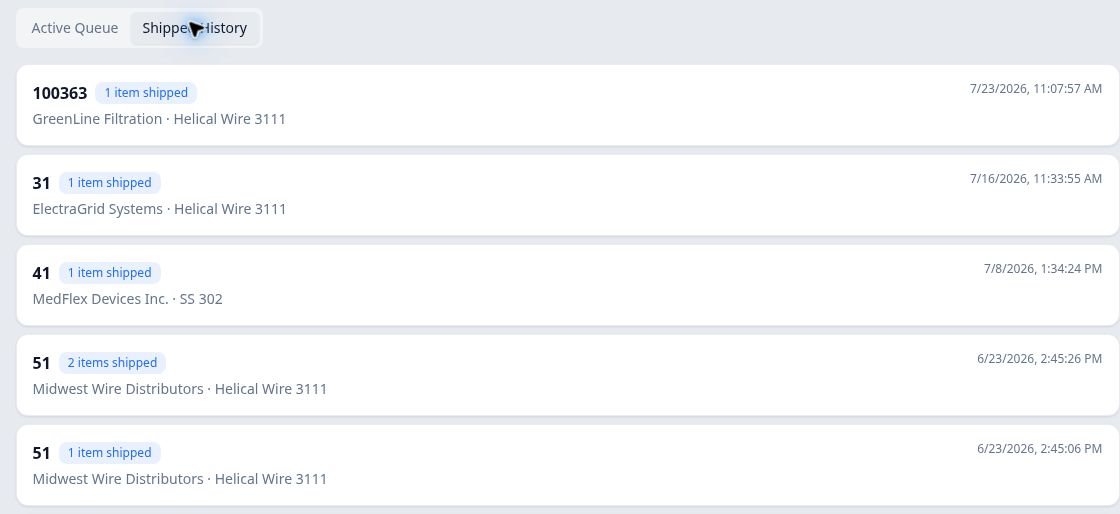
Each row represents one shipment event, so the same order can appear more than once. - Open the event you want to inspect
Select a shipment entry to open Shipment Detail. Check the order number and date/time to make sure you opened the intended event.
The panel is a read-only record. Review Items shipped, any Notes, any Closeout fields, and Included items. Closeout fields contain the values recorded for that event; the example has BOL Number and Final Quantity.
- Return to the order for readable item labels
Select View Order at the bottom of the panel. On the order, find Shipments, in the right-hand column below Assigned Inventory, and select the matching dated entry.
In the example, opening the event from Shipped History showed a short item identifier. Opening it from the order's Shipments card showed the recognizable label SPL-2607-816259-001.
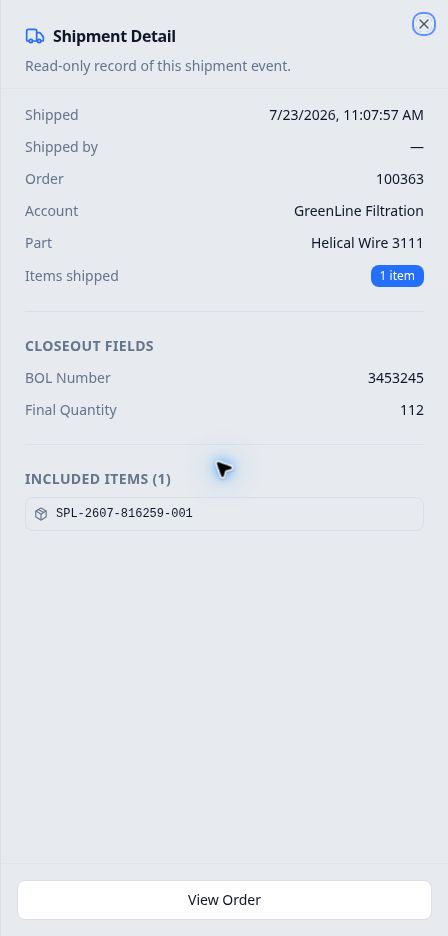
Open the dated entry from the order to check the included item's recognizable label. Select Close, at the upper right, to return to the order.
Review orders shipped in several events
Check the specific dated entry and its Included items. Do not assume that one entry includes every item on the order.
For example, order 51 has several shipment events. Its June 18 entry with the note Partial 1/2 includes one item, while a June 23 entry includes two. The event's item count and included-item list establish what that event recorded; the note is additional context.
Understand the saved fields
The Items shipped badge is an item count. A Final Quantity closeout field is a separately recorded value; do not treat the two as interchangeable. The example values illustrate where to read the record, not a quantity calculation.
This article covers shipment history and saved fields. Opening shipment-linked document attachments is outside its current scope. For ordinary order attachments, see the related article on uploading and opening order documents.