
Find your station’s work in Operator View
Select a production station, search by order number and read the work instruction and status for that station.
Before you start
You need access to Operator View and the name of the station where you are working. Have the order number ready if you are looking for a particular job.
The example uses order 100369 for Summit Precision Springs, with work at both Wire Drawing and Annealing.
Find the order
- Select your station
Open Operator View in the top navigation. Select Select your station…, the dropdown at the top left of the work area, and choose your station. The order search is unavailable until a station is selected.
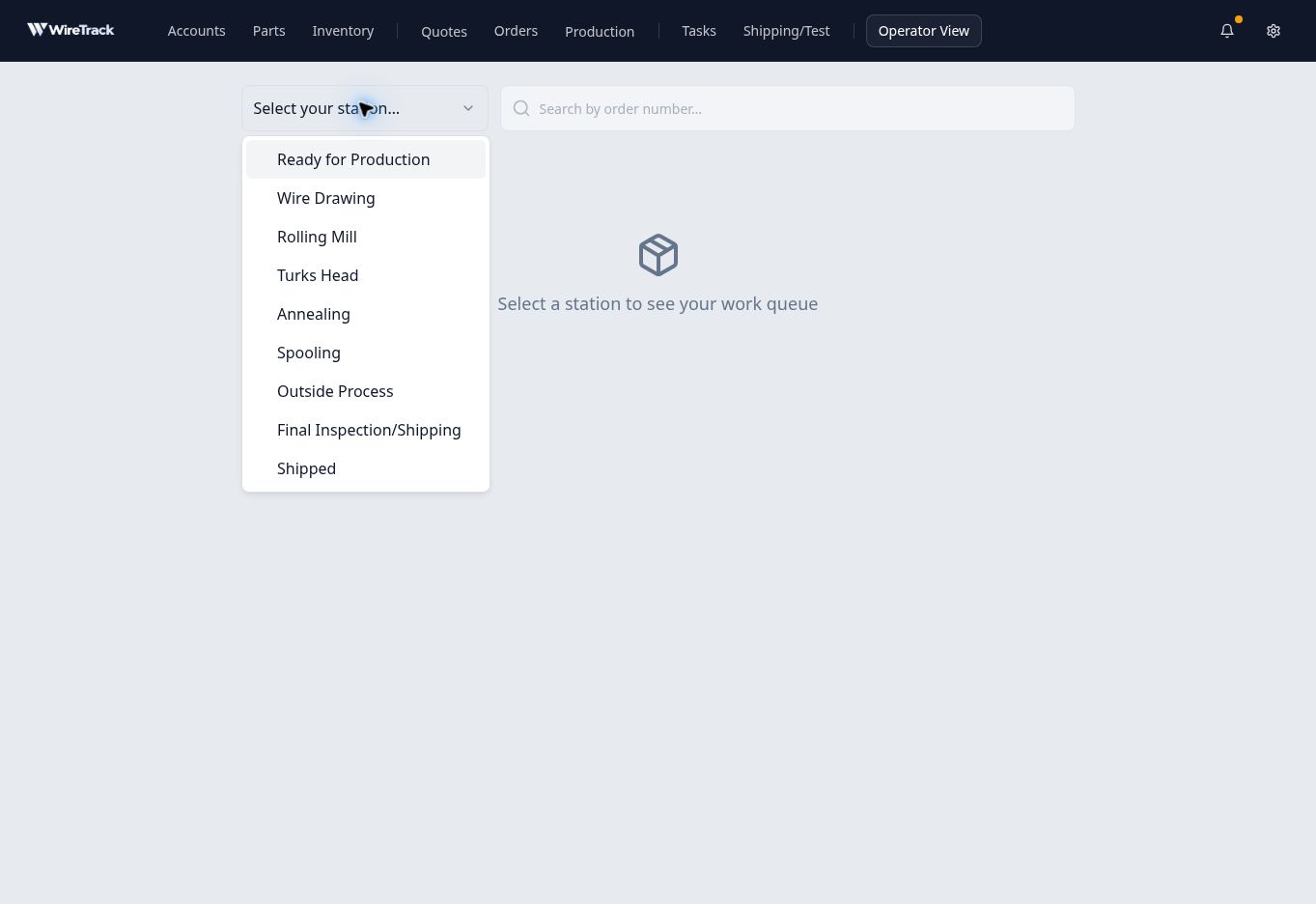
Choose the station whose queue you need to see. - Search by order number
Enter the number in Search by order number… beside the station selector. For this example, choose Wire Drawing and search for 100369.
This search uses the order number. Searching for the customer name Summit did not find the example order. Check the number and station if No matching orders found appears.
- Read the card before acting
Confirm the order number and account. Read the status beside the number, the Due date at the upper right, and the work instruction beneath the part number.
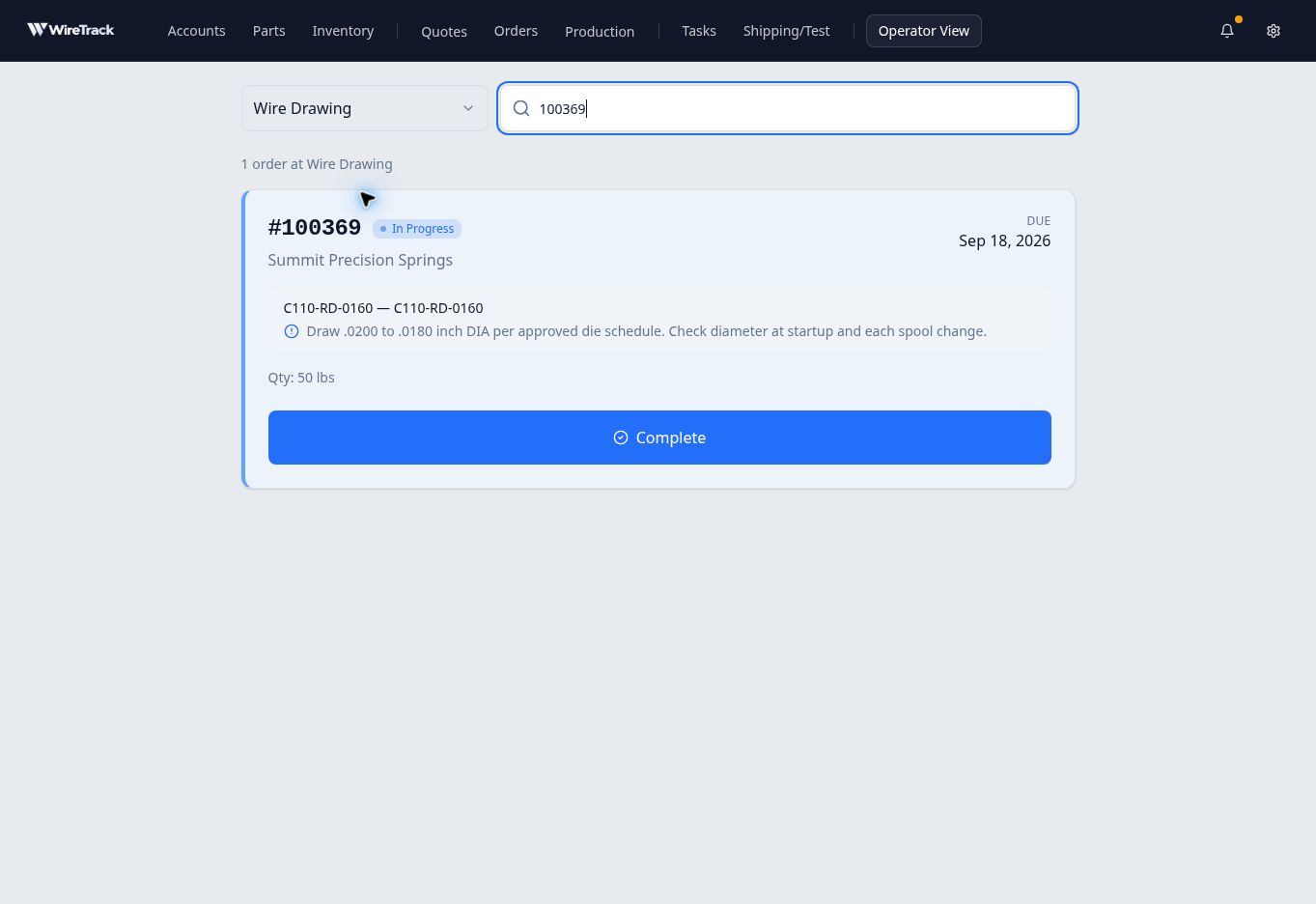
The instruction shown here is the .0200-to-.0180-inch drawing pass.
Check the station-specific instruction
At Wire Drawing, this order showed In Progress and the instruction to draw .0200-inch stock to .0180-inch diameter. Selecting Annealing and searching for the same order showed At Station and the annealing instruction instead.
When changing stations, check the search box again and enter the order number if needed. Read the new station’s instruction rather than continuing from the previous card.
If a stage appears more than once in a routing, compare its instruction with the full order before acting. If several occurrences of the same stage are active and the card does not make the occurrence clear, have the planner confirm the intended work.