
Start and complete work in Operator View
Start a station’s operation, choose a whole or partial move, and verify the next station and work instruction.
Before you start
You need access to Operator View and an order waiting at your station. Confirm which operation is ready to start or finish with your planner.
The example uses order 100370 for Summit Precision Springs. Its routing has a first Wire Drawing pass from .0200 to .0180 inch, Annealing, then a second Wire Drawing pass from .0180 to .0160 inch. Follow your order’s approved instructions.
Start the operation
- Find and check the work card
Open Operator View in the top navigation. Choose your station in the dropdown at the top left and enter the order number in Search by order number… beside it.
Confirm the order number, account and instruction beneath the part number. The example selects Wire Drawing and searches for 100370.
- Start working
Select Start Working, at the bottom left of the order card beside Complete.
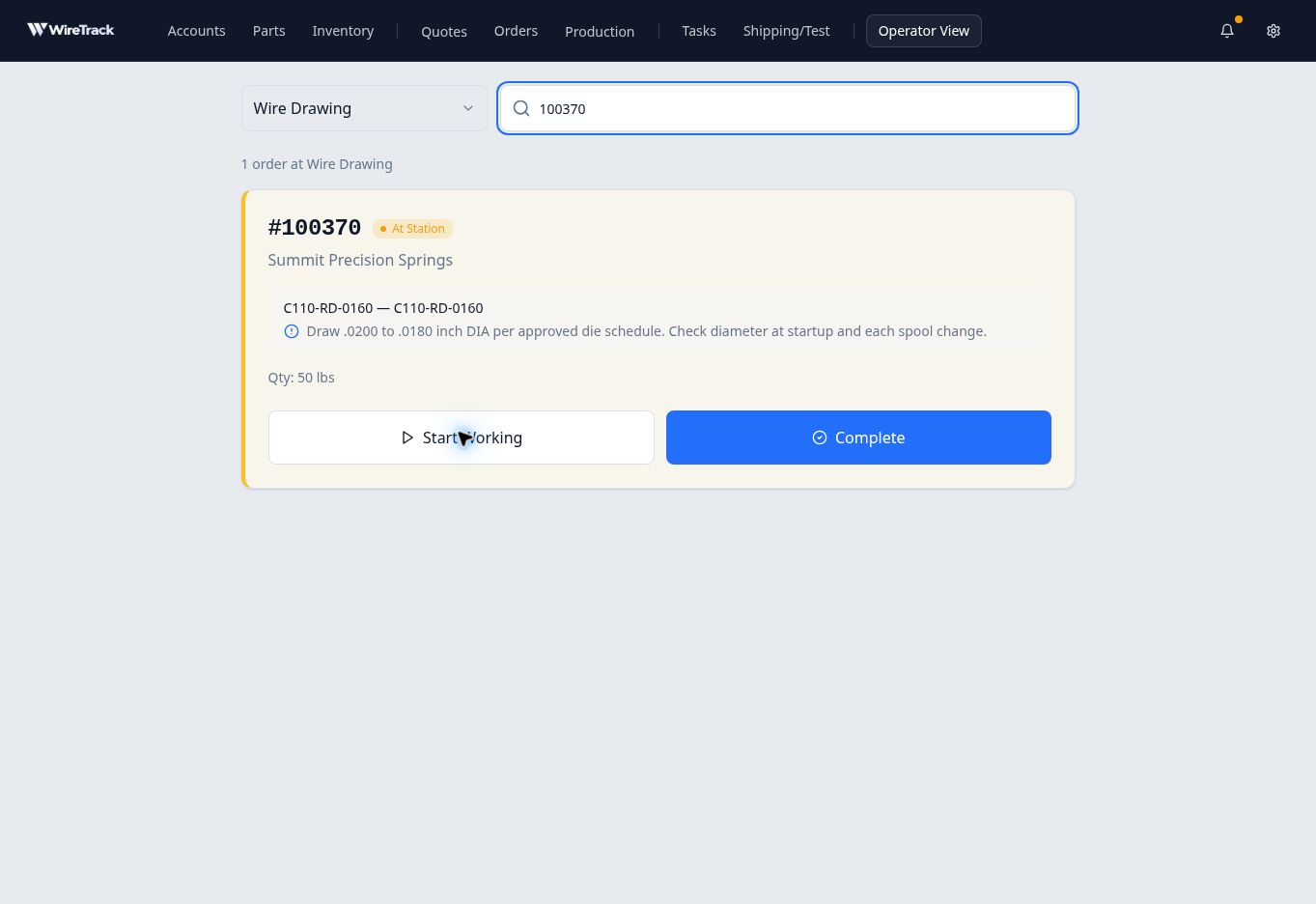
Check the instruction, then use Start Working when the operation begins. The status changes from At Station to In Progress, and Start Working disappears. Complete remains available. Starting work updates the current operation; it does not move the order to the next station.
Complete and move the work
- Review the destination
When the operation is finished, select Complete at the bottom of the card. Read the confirmation heading before continuing. For the first drawing pass, it says Complete Wire Drawing and move to Annealing?
If the station or destination is wrong, select Cancel and check the order’s routing with your planner.
- Choose the scope of the move
Choose the option that matches the work being released:
- Move Entire Order moves the work at the current operation to the named destination. Work already at a different operation can remain there.
- Move Part of Order keeps work at the current operation and also creates work at the destination.

Check the destination and choose whether all or part of the current operation’s work is moving. Select the matching blue button at the bottom right of the dialog to confirm. Selecting the radio option alone does not complete the move.
- Check the result at the next station
Choose the destination in the station dropdown and enter the order number again if the search has cleared. Confirm that the order appears At Station with the destination’s work instruction.
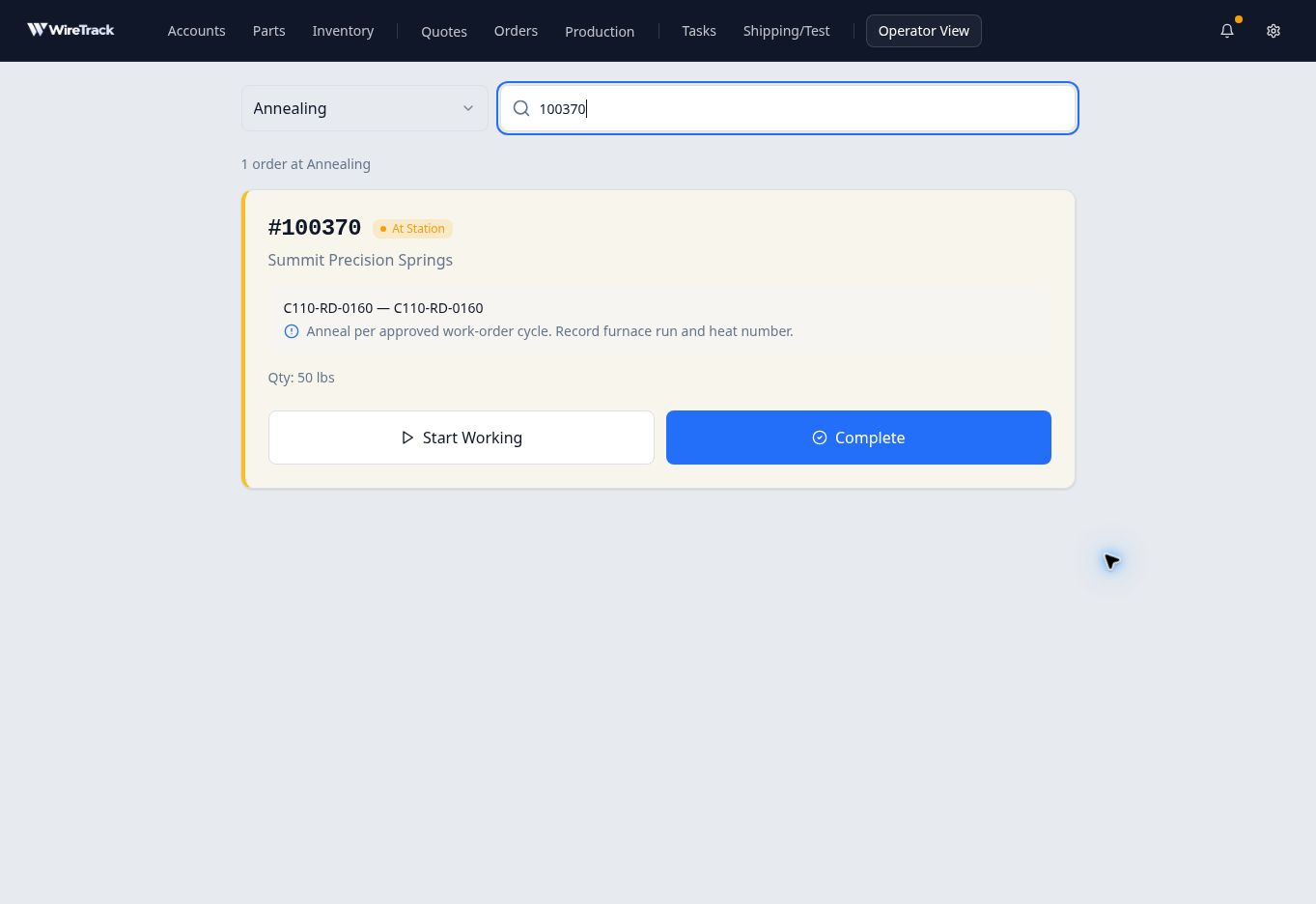
The destination card shows the next operation’s instruction. In this partial-move example, order 100370 remained In Progress at the first Wire Drawing pass and also appeared At Station at Annealing. A whole move from an operation with no other work at that station can remove the order from that station’s search results.
When the same station appears twice
Read the instruction every time you return to a station. An order can have work at two occurrences of the same station at once, while Operator View shows one order card.
In this example, both Wire Drawing passes were active. The card showed the first-pass instruction and offered Annealing as its next destination. After that first-pass work moved to Annealing, the remaining Drawing card changed to the second-pass instruction.
If you need to act on a different pass from the one shown, open the order in Orders and review Production Progress with your planner. Do not assume that one card represents every active pass or that Move Entire Order clears every occurrence of that station.
At the final operation
At the last drawing pass in this example, Complete opened Complete Wire Drawing and move to Shipped?
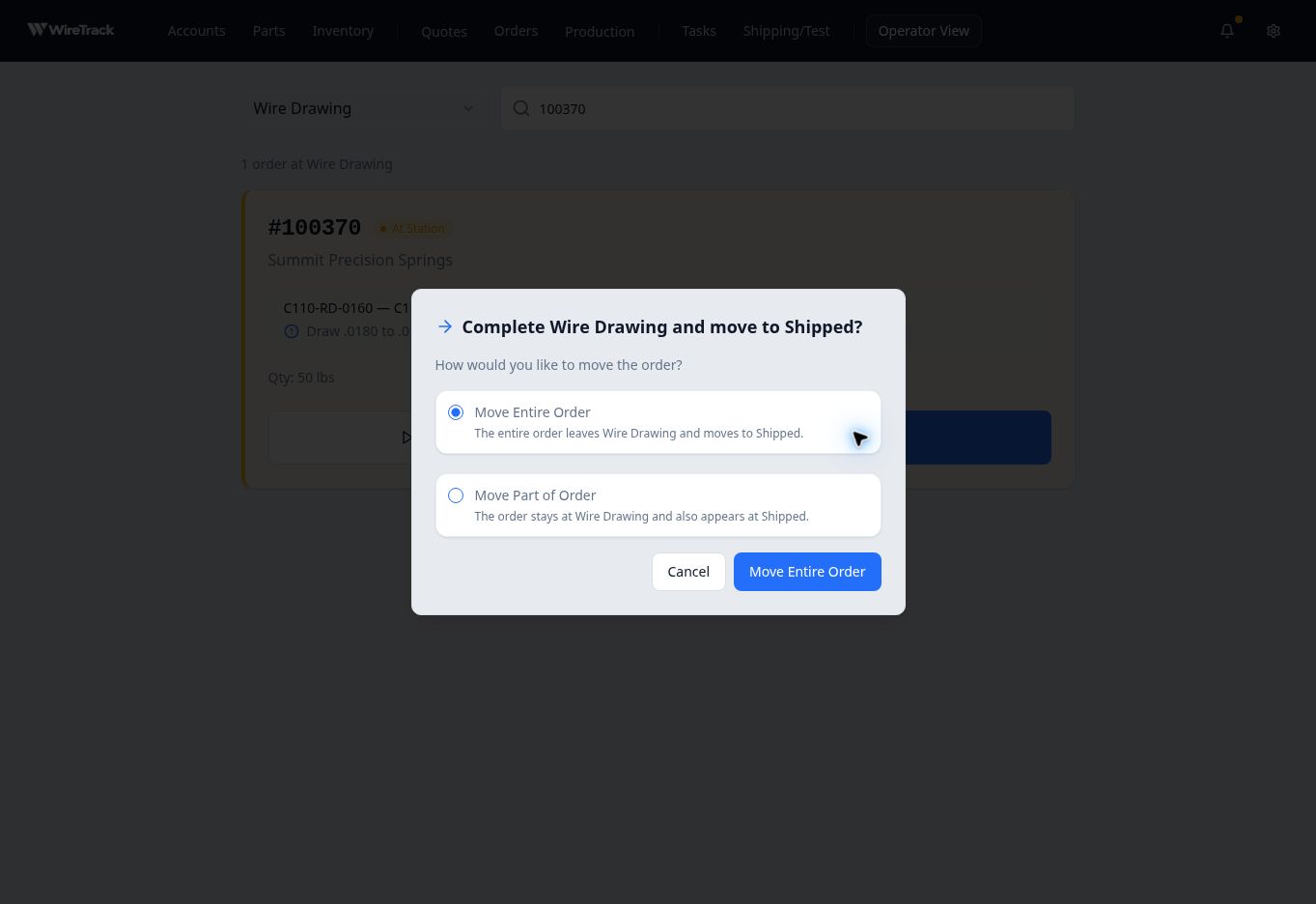
If you are not ready for that handoff, select Cancel. Confirm final inspection and release requirements with the responsible person before proceeding. To check whether a shipment has actually been recorded, use Shipments on the order record, as described in Find open and shipped orders in Related reading.