
Use the Production board
Open a station and its order details, narrow Pipeline View with a filter, and use the separate spool search in Table View.
Before you start
You need access to Production. The examples include orders for Summit Precision Springs. Your company’s stage names and number of stages may differ.
Open a station and its orders
- Open the production page
Open Production in the top navigation and select View Statuses. The page heading is Production Process. Select Pipeline View, below the summary cards beside Table View, to see order cards grouped by stage. Start with the board unfiltered so you can explore all stations.
- Open a station’s order list
Select a station name, such as Wire Drawing, at the top of its column. A sidebar opens on the right showing the orders currently at that station, with their account, status and progress. Scroll within the sidebar to see more orders.
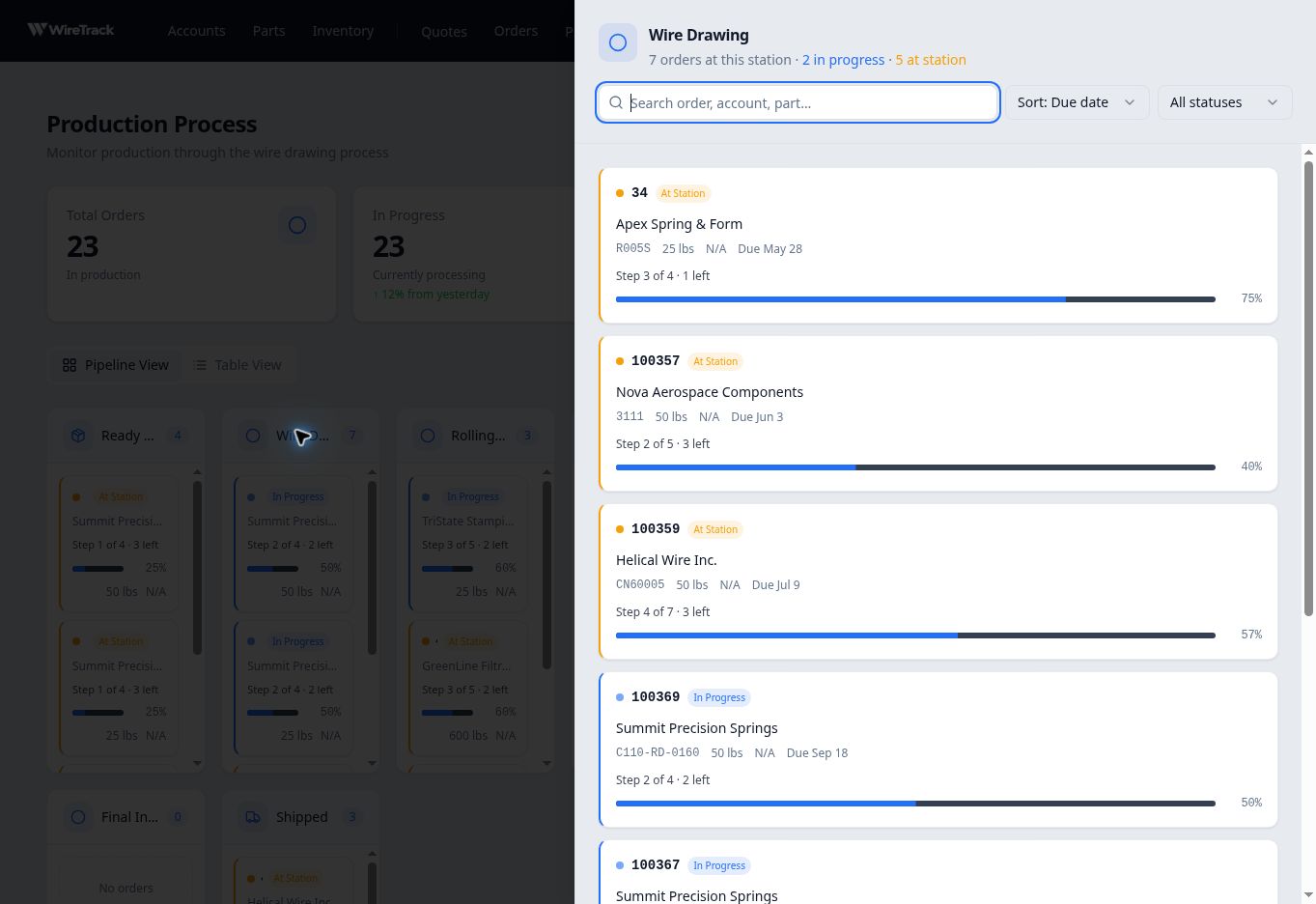
Click a station heading to open its order list. Select a card in this sidebar to see that order’s details. - Open an order’s details
Select an order card in the station sidebar. The order details panel opens with its account, specifications and stage progress. Confirm the order number and account. To open the complete order page and its work instructions, select View Full Record at the bottom of the order details panel.
Narrow the board with a filter
Return to Production → View Statuses if you opened the full order record, or close the open panels to return to the board.
- Apply a filter
Select Filters above the stage columns, then Add filter in the expanded panel. Choose a field, a condition and a value. For the example shown, choose Account, select Contains, and enter Summit.
In the example below, the stage columns show two matching Summit Precision Springs orders. Read the cards and stage counts to see the filtered results; the summary cards above the board are not a count of this filtered result set.
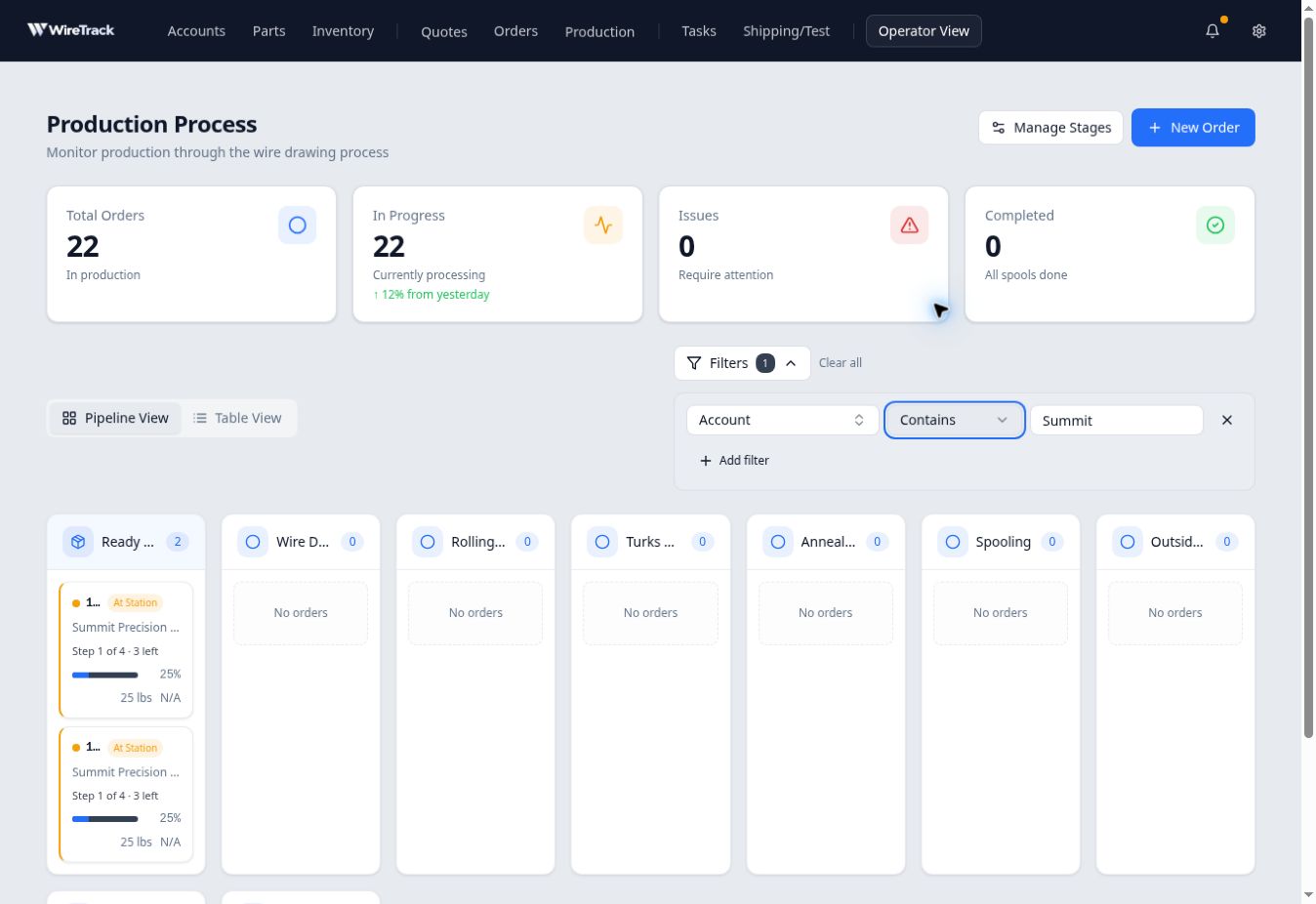
An Account filter narrows the order cards shown in Pipeline View. - Open the order you need
Select an order card to open its summary. Confirm the order number and account, then select View Full Record for the order detail page and its work instructions.
You can also open a station’s sidebar from the filtered board. Its Search order, account, part… field, at the top of the sidebar, helps locate an order in the list.
Use Table View’s search
Select Table View to see spool records with their linked order and account, stage and status. Enter an order number or account name in Search spools, orders, accounts....
In the table example below, searching for Summit returned two rows: order 100368 at Ready for Production and order 100367 in progress at Wire Drawing.
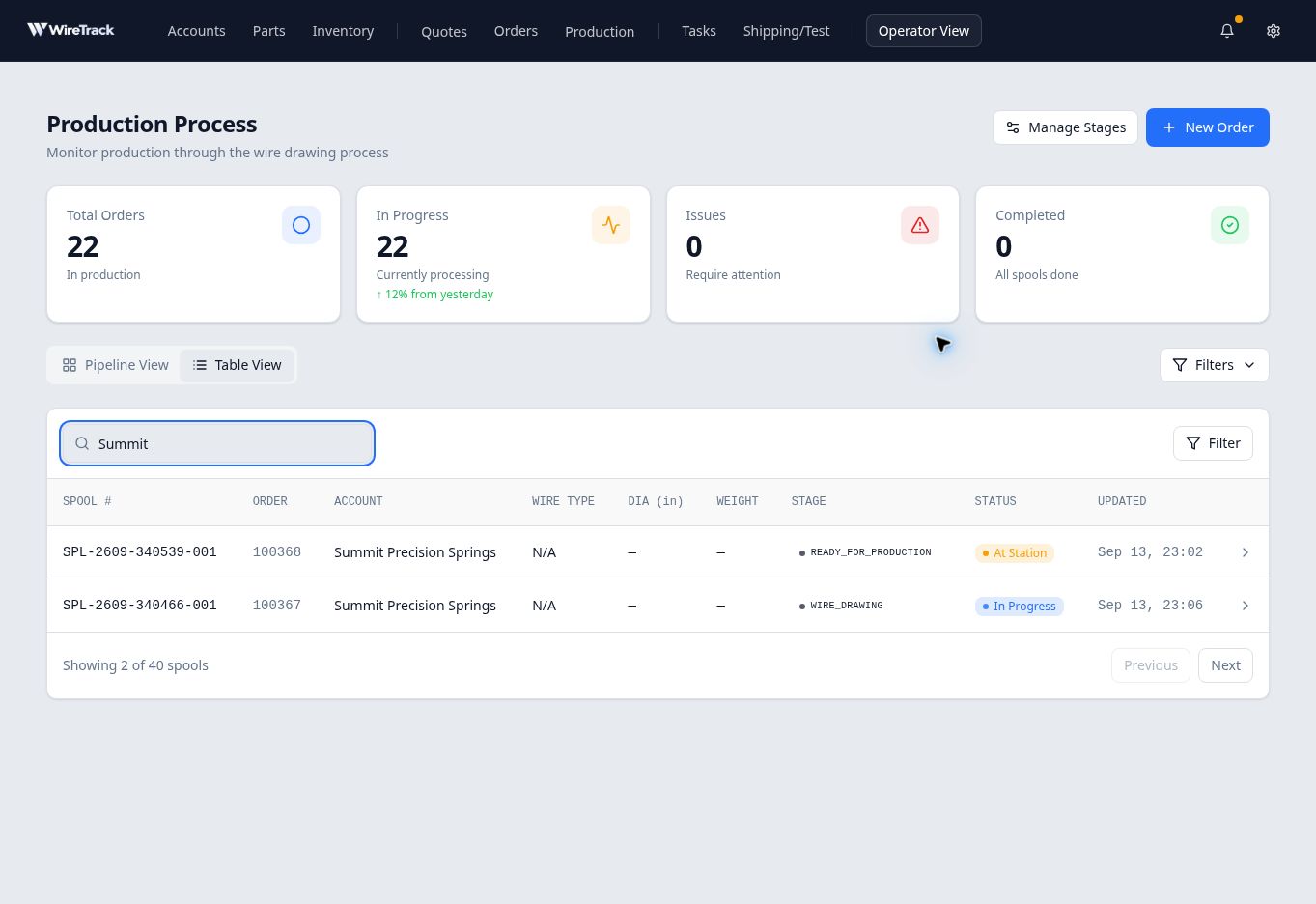
Expected result
You can locate the required order, identify its displayed production stage and open its full record. To interpret Step 2 of 4 and the percentage bar, see Read an order’s production progress in Related reading.