
Enter quantities, price bases and lead times
Add quantity breaks to a draft product line and check each option’s price, units and lead time.
Before you start
Open the intended Draft quote revision in the Composer’s Edit mode and select a product line. Pricing & offers appears below the line’s descriptive fields in Edit line on the right.
This example uses Protective spool packaging, item PKG-SPOOL-25LB, on quote 34, revision 0, in USD. Both the quantity unit and price-basis unit are EA — Each.
Understand the fields
| Field | What to enter | First example option |
|---|---|---|
| Quantity | The quantity for this pricing option. | 4 |
| Unit | The unit in which that quantity is expressed. | EA — Each |
| Price | The price for the stated basis quantity and unit. | 12.50 |
| Basis qty | How many units the price covers. | 1 |
| Basis unit | The unit the price is based on. | EA — Each |
| Lead time (optional) | The lead-time wording for this product option. | 2 weeks ARO |
The example means 4 each at $12.50 per 1 each. Use the pricing and lead-time wording agreed for your quote; these values are illustrative.
Enter the pricing options
- Add the first quantity break
Under Pricing & offers, select Add quantity break. A row appears with quantity, price and basis fields.
For this catalog item, Unit starts at EA — Each, Basis qty at 1, and Basis unit at EA — Each. These came from the item’s saved defaults. Check the actual values on your line before entering a price.
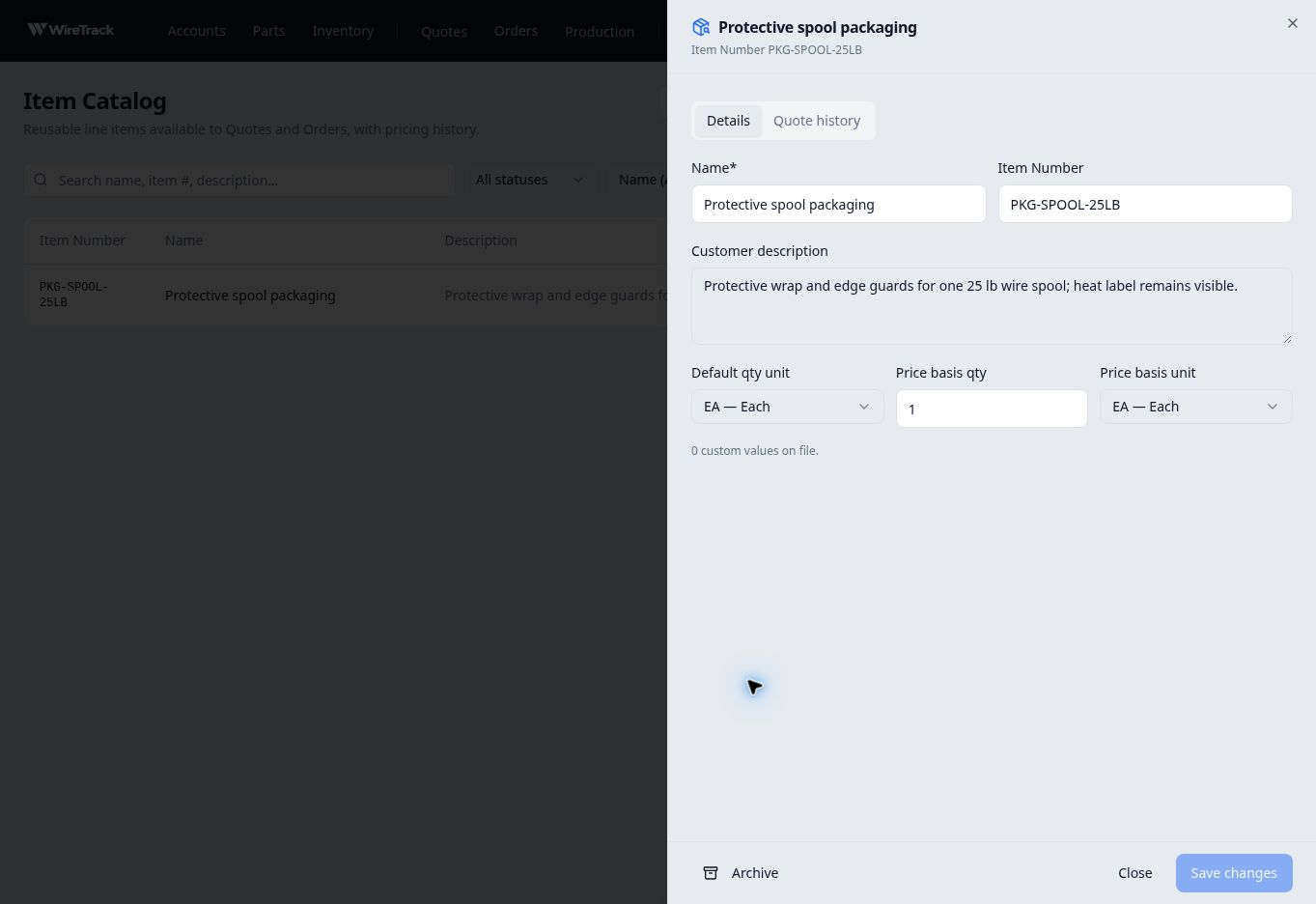
The catalog item supplies the unit defaults used in this example. Enter the selling price on the quote line. - Enter quantity, price and lead time
Enter 4 in Quantity and 12.50 in Price. Keep the 1 EA price basis. Enter 2 weeks ARO in Lead time (optional).
Check Extended below the row. For this option, it displays $50.00.
- Add another quantity break
Select Add quantity break again. In the second row, enter 10 EA at $11.00 per 1 EA, with 2 weeks ARO as the lead time. Its Extended amount is $110.00.
Check each row separately. A quantity-break row is a pricing option for that quantity; the two example amounts are not presented as one combined purchase.
- Save and check both options
Select Save at the bottom of Edit line. Wait for the saved state, then check both rows’ quantities, units, prices, basis and lead time.
In this example, Save and Cancel became disabled after saving. The product-line summary showed 4 EA · $12.50 per 1 EA · $50.00, followed by +1 break for the second option. Review the rows in Edit line to see the full set of values. Both options were retained when the draft was reopened.
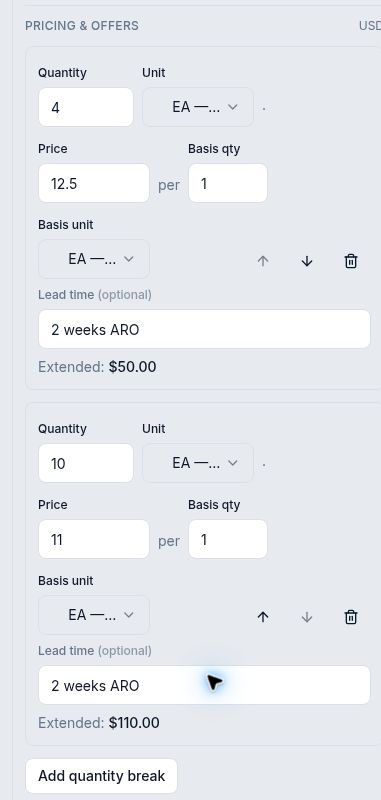
The reopened line retains both quantity breaks and their lead times.
Check the extended amount
With the same quantity and price-basis unit, the example uses Quantity ÷ Basis qty × Price:
| Quantity | Price basis | Extended |
|---|---|---|
| 4 EA | $12.50 per 1 EA | $50.00 |
| 10 EA | $11.00 per 1 EA | $110.00 |
This walkthrough uses matching units throughout. Check Unit, Basis qty and Basis unit together whenever you review a price.