
Preview, print and download a draft quote
Review a saved draft, download its PDF and open its print view before issuing a quote.
Before you start
Open the intended Draft revision in the Composer. Save your line and pricing edits, and check the quote number and revision in the header.
This example uses quote 34, revision 0, for Summit Precision Springs. It has a packaging product with two pricing options and a separate handling reference. The draft fits on one PDF page.
Review the draft
- Switch to Preview
Select Preview in the Composer header, beside Edit. The quote document appears with the message Preview reflects saved changes.
The header also exposes Download PDF and Print. The Draft badge remains visible.

Preview exposes the draft export controls. Issue Quote is a separate action. - Check the document contents
Confirm the quote number, revision, customer, currency and prepared-by details. Then check each section, item description, quantity, unit price, lead time and extended amount.
In the example, Protective spool packaging has 4 EA at $12.5 / EA and 10 EA at $11 / EA, both with 2 weeks ARO. The extended amounts are $50.00 and $110.00. The Handling notes section contains Heat-label visibility and its instruction.
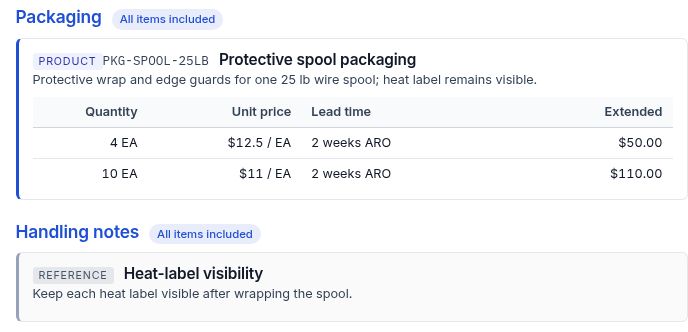
Review both pricing options and the reference text before using the document. If something needs changing, return to Edit, review the relevant field and save the correction before checking Preview again.
- Download and open the PDF
Select Download PDF in the header. Wait for the browser download to finish, then open the file from your downloads.
The example downloaded as Quote-34-R0.pdf. Check the actual PDF’s customer, quote/revision, descriptions, both pricing options and reference text. It retained those values on one letter-size page.
- Open the print view
Select Print, beside Download PDF. A separate print view opens with the quote document. Review its contents and the print settings your browser presents before printing.
The opened view in this example also included Print again. Browser print controls can vary. If you are reviewing only, cancel any print dialog and close the print tab when finished.
- Return to the draft
Return to the Composer or use Back to Quote. Check that the intended revision is still marked Draft.
After previewing, downloading and opening the print view, this example still had one Revision 0 — Draft and remained at Quote Requested.