
Create a quote and open its draft revision
Create a quote request, check its initial stage and revision, and open the draft Composer.
Before you start
You need access to Quotes and the intended account. This walkthrough creates a quote request and opens its first draft revision. It stops before issuing or sending a customer document.
Create the request
- Open the quote form
Open the Quotes navigation menu and select Quotes. Select Add Quote, beside Import Records at the top right.
- Check the account and identifying details
In New Quote, select the Account and enter a useful Title. This example uses Summit Precision Springs and Spool packaging — four-spool request.
Leave Quote Number blank to use automatic numbering. In this example, Part and Estimated Value ($) were also left blank. Complete any additional required fields shown in your company’s form.
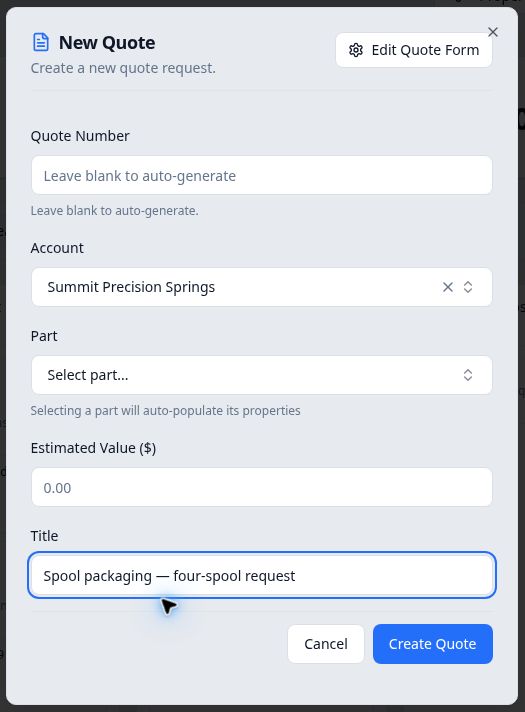
Confirm the account and title before selecting Create Quote. - Create and check the quote
Select Create Quote and wait for the quote page to open. Confirm the assigned quote number, title and account.
The example was numbered 34 and started at Quote Requested. In Quote Revisions, on the right side of the desktop page, Revision 0 was marked Draft.
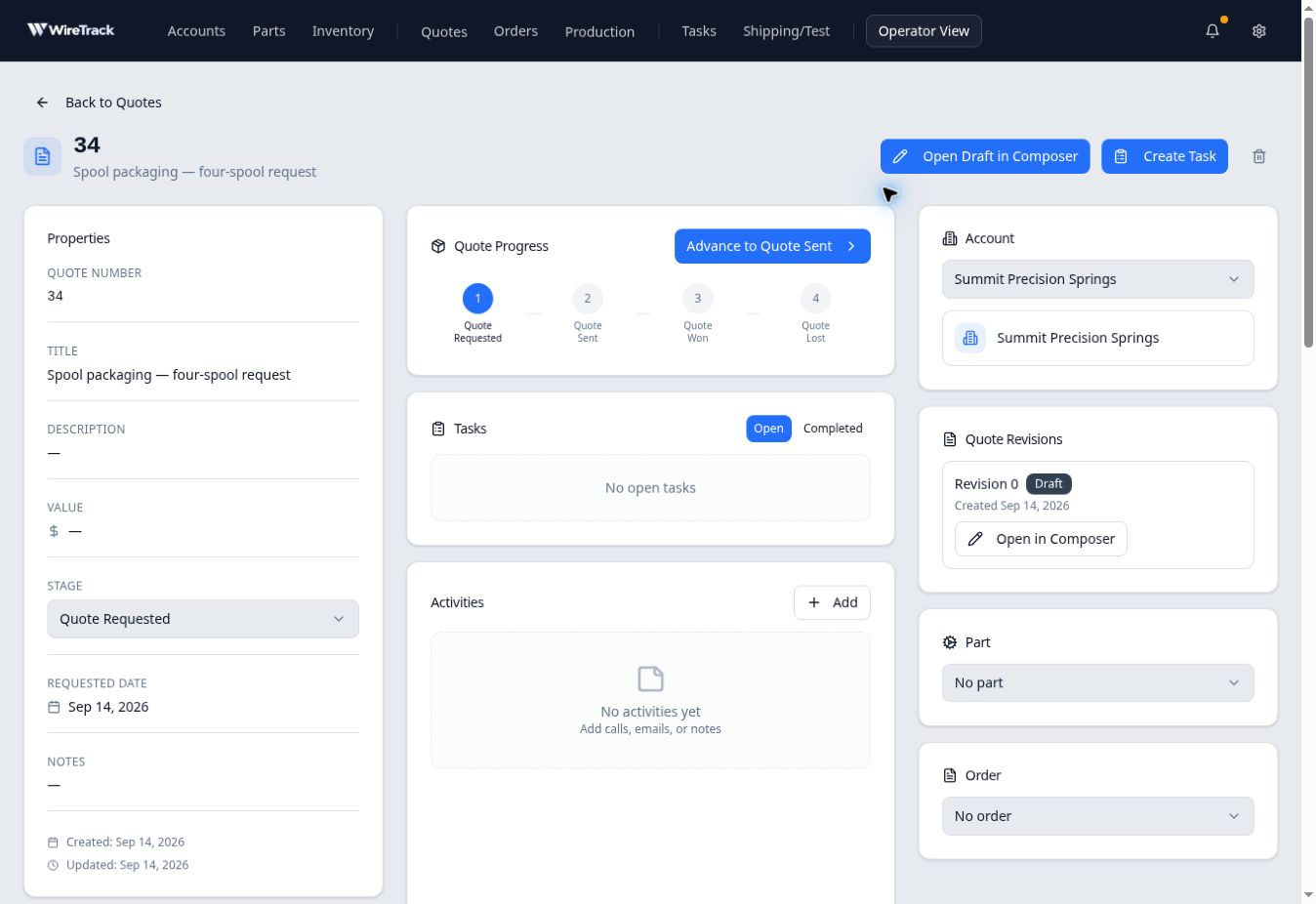
The quote’s pipeline stage and its revision status are displayed separately. - Open the draft
Select Open Draft in Composer near the top of the quote page, or Open in Composer on the Draft entry in Quote Revisions.
Check the quote number, Rev 0 and Draft in the Composer header. The initial draft opens in Edit mode with quote and customer details, followed by Add section for building its contents.