
Create an order from a won quote
Review prefilled order details, enter the accepted quantity, and verify the saved quote-to-order link.
Before you start
Open the accepted quote and confirm its account and part. This walkthrough creates one order from one quote. The order form requires an Account and Part Number.
The example uses quote 36, Summit Precision Springs, and part C110-RD-0160. Its quotation contains a 25 LB offer, but the order quantity still needs to be entered in the handoff form.
Create the order
- Open the Won handoff
On the quote page, select Advance to Quote Won in Quote Progress, or choose Quote Won under Properties → Stage.
Create Order from Quote opens. Check the quote number in the form. Although its introductory text says the quote has been won, the example remained Sent until the order was successfully created. Canceling the form left it Sent with no order link.
- Check the prefilled details
Review Order Number, Account and Part Number. The form suggested order number 100372 and selected the quote's account and part.
Description defaulted to the selected part's description: C110 copper wire, .0160 inch DIA. Review or edit it for this order. It was not the longer customer description from the Composer line.
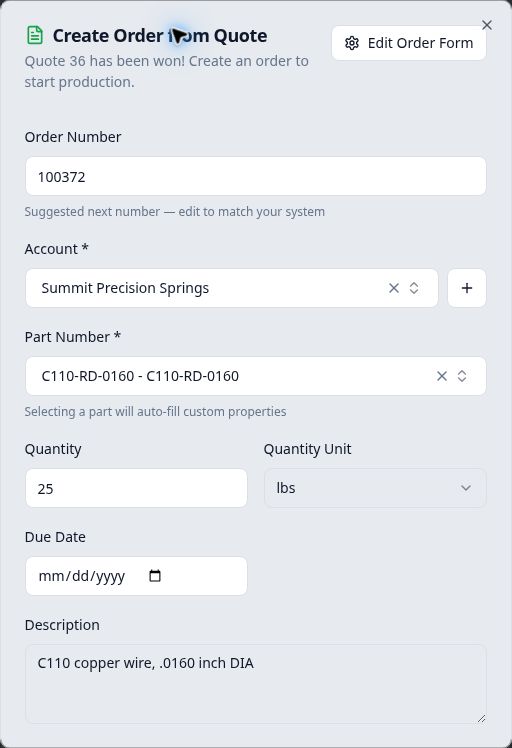
Check the account and part, then enter the order quantity and unit. - Enter the accepted order quantity
Enter Quantity and select Quantity Unit. The example form initially showed 0 lbs, even though the quote offer was 25 LB. Entering 25 with lbs set the intended order quantity.
Complete Due Date if needed and add Notes. This example leaves the date blank and uses: Rewind onto a 25 lb spool and retain heat identification. Scroll within the form to reach the notes and action buttons if necessary.
Do not assume quote-line quantities, pricing options or lead times have become order values. Review the order fields explicitly.
- Create and inspect the order
Select Create Order once and wait for the saved order page. Confirm its number, account, part, quantity, unit, description and notes.
Order 100372 saved 25 lbs, the part description, the entered note and a blank due date. It also contained the part's production steps and one initial spool at Ready for Production. Creating the order did not start work, assign inventory, generate a traveler or record a shipment in this example.
Confirm both links
On the new order, find Quotes in the right-hand column and select the originating quote. Confirm Quote Won under Stage and inspect the Order card.
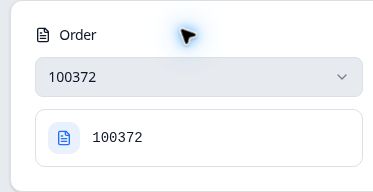
Select the order-number link and check the saved order again. The example retained the same values and linked back to quote 36.
The order also inherited the selected part's production instructions and matching custom-property values. Review these before releasing work; this example does not establish every possible custom-field mapping or conversion of multiple quote lines into orders.