
Issue a quote and retrieve its official PDF
Create the official quotation document, confirm the revision is locked, and retrieve the saved PDF.
Before you start
Open the intended quote's Draft revision in Composer. Review its customer, line descriptions, quantities, price units, lead times and commercial terms. Issuing creates the official PDF and locks that revision; later changes need a new revision.
This example uses quote 36, with 25 LB of C110 copper wire at $8.50 per 1 LB, a 3 weeks ARO lead time and $212.50 extended value. These are illustrative quotation values.
Issue the revision
- Review the saved Preview
Save any line edits, then select Preview in the Composer toolbar. Check the quote number and Rev number, and review the document. The preview indicates that it reflects saved changes.
Download PDF on a draft is different from issuing: a draft download does not lock the revision or make it an official issued document.
- Confirm Issue Quote
Select Issue Quote, beside Print in the Preview toolbar. Read the confirmation and check the revision number. Cancel leaves issuance unconfirmed.
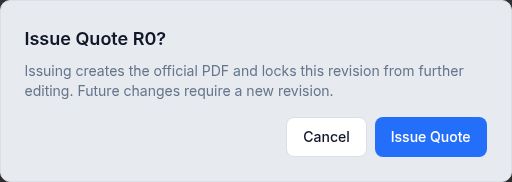
Confirm the revision before creating its official PDF. Select Issue Quote in the confirmation. Wait while WireTrack generates and saves the official PDF.
- Confirm the issued result
After success, the Composer header shows issued and Read-only. The editing controls are replaced by a read-only view, with View issued PDF, Download and Create new revision controls.
Select Back to Quote. In Quote Revisions, on the right side of the desktop page, confirm that the intended revision is marked Issued.
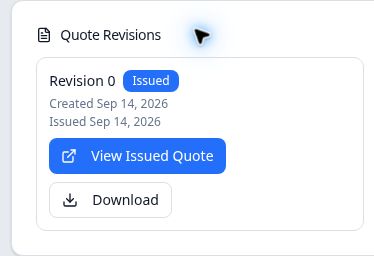
Retrieve the saved document from its Issued revision.
Retrieve the official PDF later
Reopen the quote and find the Issued entry in Quote Revisions. Select View Issued Quote to open its saved PDF. Check the quote number and revision shown in the document.
Use Download to retrieve the same saved document. In the example browser, this opened the PDF viewer in the current tab; selecting the viewer's download arrow saved the file. If your browser opens the PDF instead of immediately saving it, use that viewer control.
The example's downloaded PDF contained one page, the correct customer and quote/revision, and the saved quantity, price, lead time and extended value.
If validation stops issuance
WireTrack displays Quote cannot be issued yet and lists the problem. The example was refused while it had no customer-facing line.
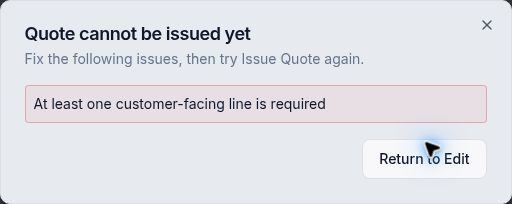
Select Return to Edit to dismiss the message. If Preview remains selected, select Edit in the toolbar. Correct and save the listed issue, review Preview, then try Issue Quote again. The missing-line attempt left the example revision Draft; issuance succeeded after a complete product line and offer were added.
Issued status and pipeline stage
Issuance and the sales pipeline are separate. Quote 36 remained Quote Requested after Revision 0 was issued. Use the pipeline workflow separately to record Sent, Won or Lost; an Issued badge alone does not establish that the customer has received the document.