
Organize a quote into sections and line items
Add named sections and editable lines to a draft quote.
Before you start
Open the intended Draft revision in the Composer and use Edit mode. Check the quote number in the header before making changes.
How the Composer is organized
A section groups related lines. A line identifies an item or reference within that group. A product line can then have one or more pricing options, entered as quantity breaks.
In this example, Packaging is the section, Protective spool packaging is its product line, and 4 EA and 10 EA are the two pricing options on that line. Handling notes is a separate section containing a reference line.
Build the sections and lines
- Add and name a section
Select Add section below the quote details. A New section appears. Select its pencil-shaped Rename section control, enter the title and select Save beside the title field.
The example uses Packaging. Add another section when you need a separate group, such as Handling notes.
- Choose how to add a line
Select Add line in the intended section’s header. The menu offers Select from Catalog…, Create new product…, Add one-off product, Add charge, Add accessory and Add reference.
For an existing reusable item, choose Select from Catalog…, select its row and choose Add item only. The example adds Protective spool packaging as a product line under Packaging.
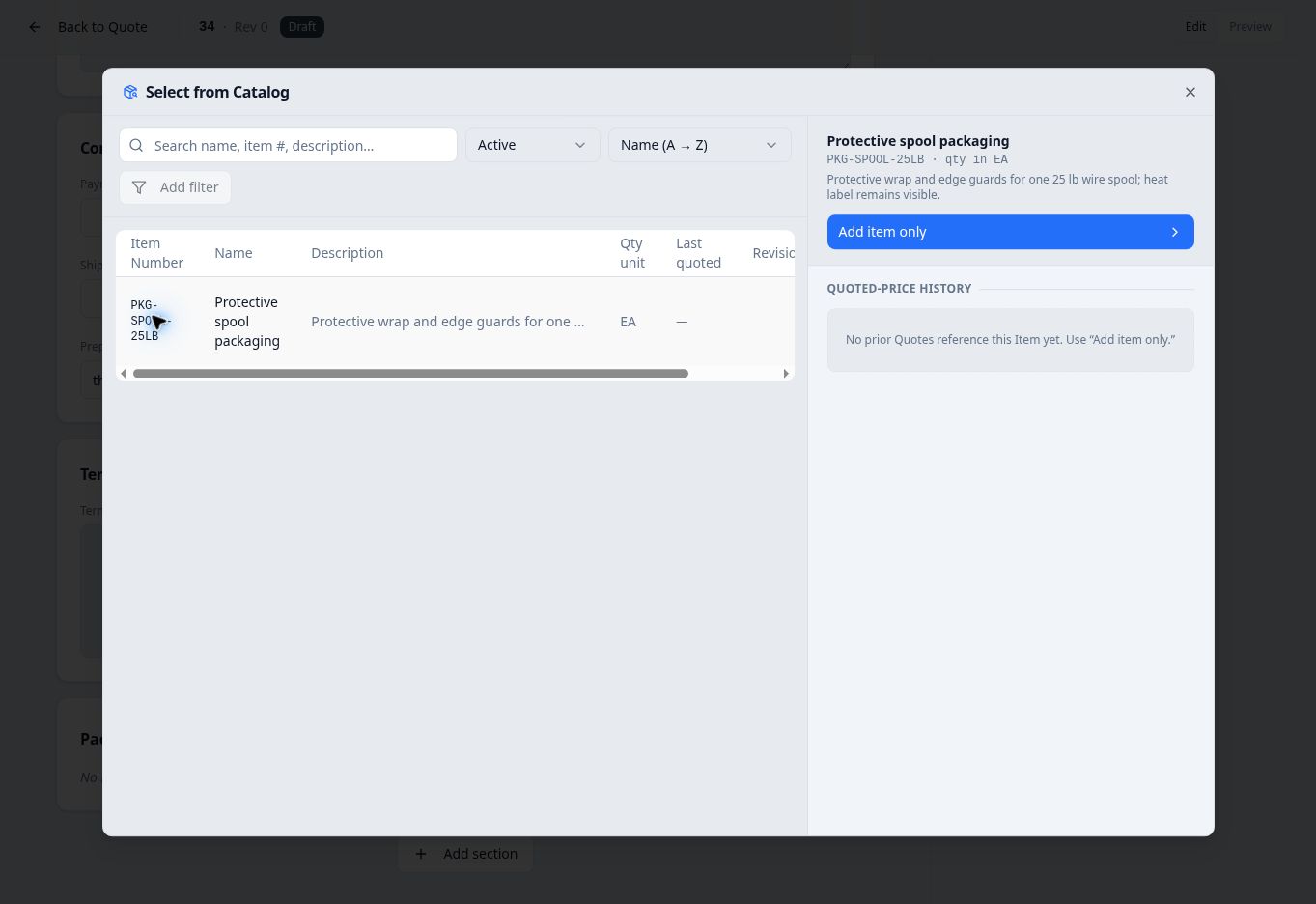
Selecting an existing catalog item inserts a line into the section you opened the picker from. - Review the selected line
Select a line to open Edit line on the right. Check Type, Item number, Name and Customer description. Use Internal notes for the line’s internal note field.
For a catalog product, review its copied description and enter pricing under Pricing & offers. Select Save after entering the prices. The packaging example initially had no offers; after pricing was saved, the line summary showed 4 EA · $12.50 per 1 EA · $50.00, followed by +1 break for its second option.
- Check each section’s contents
Confirm that each line is under the intended heading and has the expected name and type. The packaging example shows the catalog item’s name and the product type.
After saving pricing, check the values in the line editor and its summary before leaving.